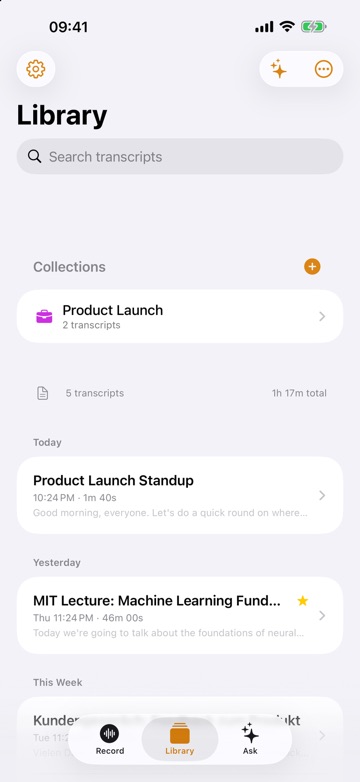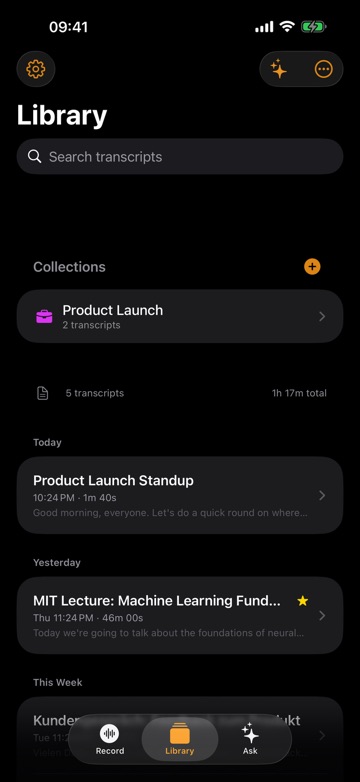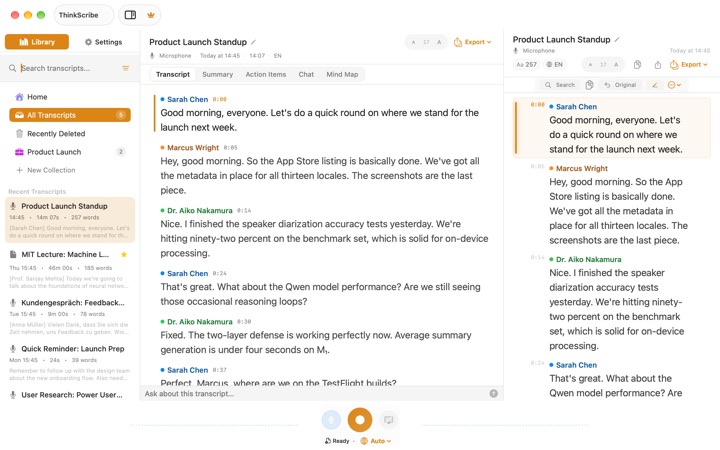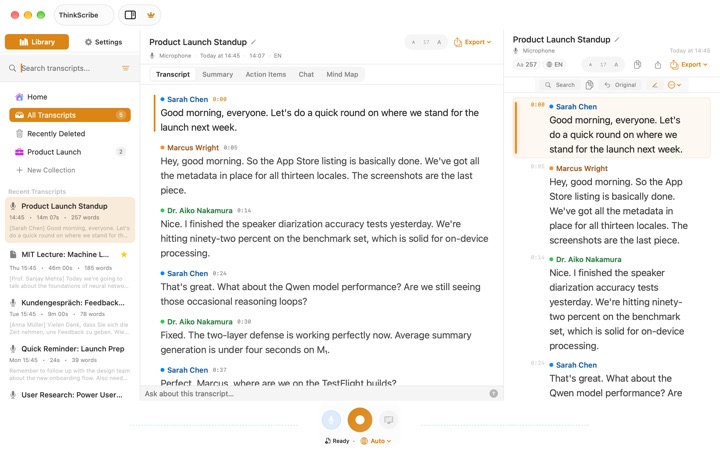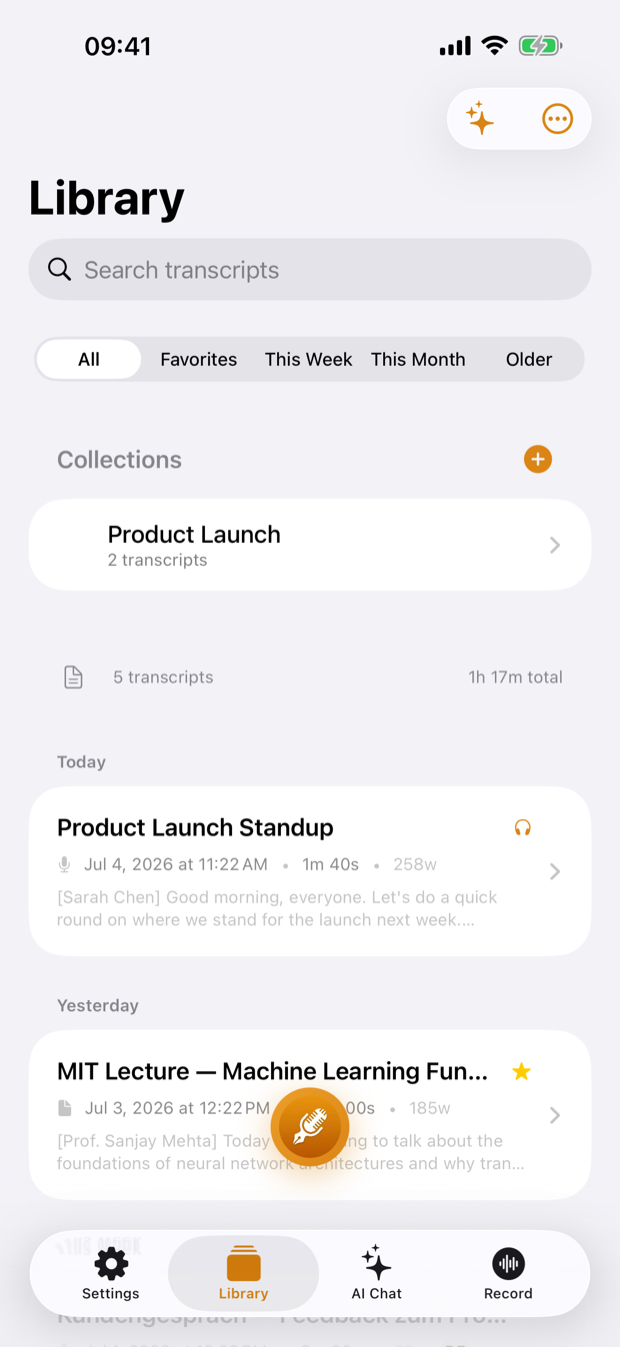
If you want one voice to text app for iPhone and Mac, ThinkScribe covers the three jobs people usually mean: recording something and getting a transcript, typing with your voice in any app, and turning an existing audio or video file into text. It runs on iPhone, iPad, Mac and Apple Watch, and one subscription covers all of them.
Transcription and speaker labels happen on your device and work offline. There is no account, and your recordings and transcripts are never sent to us.
This guide explains each of the three ways, what you can do with the text afterwards, and which one to reach for in a given situation. Each section links to a deeper guide when you want the details, and the audio to text overview shows the app at a glance.
How to get your first transcript in ThinkScribe
- Download ThinkScribe from the App Store on your iPhone, iPad or Mac (iOS and iPadOS 26 or later; a Mac with Apple silicon and macOS 26 or later).
- Go through the short welcome and allow the microphone when asked.
- Check the transcription language next to the record button and pick the language that will be spoken.
- Tap the record button and talk, or put the phone on the table in a meeting. Tap Stop when you are done.
- Wait a moment while ThinkScribe transcribes and separates the speakers, then open the new recording.
You can start recording as soon as the app opens. The first time, ThinkScribe may improve accuracy with a download in the background, and you never have to wait for it. The step-by-step setup for each platform is in Get started on iPhone and iPad and Get started on Mac.
Way 1: record and transcribe
This is the everyday one. You record, you tap Stop, and ThinkScribe makes the full transcript with each voice separated as Speaker 1, Speaker 2 and so on. Tap any line to play the audio from that point, and long-press a line for Copy with Timestamp.
On iPhone the recording keeps going while you use other apps, and you can also start from Siri ("Start a ThinkScribe recording") or a Shortcut.
On Mac, press ⌘R for a new recording, or ⇧⌘R to record system audio from Zoom, Teams, FaceTime or anything else playing on the Mac. No bot joins the call. For meetings, see meeting minutes from a recording and record a Zoom, Teams or Meet call on Mac.
Way 2: voice typing in any app
When the goal is text inside another app (a message, an email, a note, a document), use voice typing instead of a recording.
- iPhone and iPad: add the ThinkScribe Voice keyboard in iOS Settings > General > Keyboard > Keyboards, and allow Full Access. iOS keyboards cannot use the microphone themselves, so the keyboard hands off to the ThinkScribe app, which keeps the mic ready for the idle time you choose. Tap the mic for hands-free, hold it for push-to-talk. Details in offline dictation with a voice typing keyboard.
- Mac: press Option-Space (⌥Space) in any app, speak, and press it again. The shortcut is set up during onboarding; change it, or check it is on, in Settings > Voice Typing. If you grant the optional Accessibility permission, the text lands at your cursor; otherwise it is copied and you press ⌘V. See dictate into any Mac app with Option-Space.
What you dictate is transcribed on your device and never sent to us.
Way 3: import an audio or video file
Already have the audio? On iPhone, import a file from Files, or share it to ThinkScribe from Voice Memos, Files, WhatsApp or Telegram. On Mac, press ⌘I or drag files onto the window; several files at once are fine. ThinkScribe reads common audio and video formats such as m4a, mp3, wav, mp4 and mov. It does not import from YouTube or other links.
See transcribe audio to text on iPhone, transcribe audio to text on a Mac and the full import guide.
What you can do with the text
A transcript is the start. Everything below works on recordings and imported files alike.
- Read it clean. Hesitations and filler words can be left out for easier reading, with the original text still there when you need it.
- Name the speakers. Rename a speaker once. Named voices are then recognized automatically in new recordings. See speaker identification.
- Summarize. Choose Summarize (with an Action Items list), Meeting Minutes, Executive Brief or Mind Map. Summary points carry citations you can tap to jump to the line. Walkthroughs: meeting minutes and action items from a recording and on-device summaries, action items and answers.
- Ask it questions. Ask about one recording, or put related recordings in a collection and ask across all of them.
- Search everything. The Library search reads the full text of every transcript and title, so you can find the meeting where a word was said. More in search inside audio recordings.
- Export it. TXT, SRT, VTT, JSON, Markdown and PDF on iPhone and iPad; Mac adds Word. See export a transcript.
For AI features you can choose Apple Intelligence (provided by Apple, on devices that support it) or ThinkScribe AI (a one-time download that runs on your device) in Settings. Your transcripts are never sent to us.
Apple Watch
The Watch app records with one tap, from the app or a complication. The audio goes to your iPhone and is transcribed there, not on the Watch. It is handy on a walk or when your phone is in a bag. See the Apple Watch voice recorder guide.
Sync between your devices
Sync is optional and off by default. Turn on Settings > iCloud Sync > Sync Across Devices to keep transcripts, summaries, collections and speaker names on your iPhone, iPad and Mac in step through your own iCloud account (provided by Apple). Audio syncs only if you also turn on Sync Audio to iCloud. See sync transcripts between iPhone, iPad and Mac.
Which one should I use?
Pick by what you want to end up with.
- A meeting around a table: record on iPhone, then name speakers and make minutes. Meeting minutes from a recording.
- A video call on your Mac: record system audio plus your microphone. Mac call guide.
- A lecture or talk: record it, then summarize or make a mind map to revise from. Lectures to study notes.
- Reading what was said instead of listening: transcripts and captions as an accessibility tool. Live captions and transcripts.
- An interview you will quote from: record, name the guest, and copy lines with timestamps. Interview transcription for journalists.
- A message, email or note: voice typing, not a recording.
- A thought you do not want to lose: a short recording on your phone or the Watch. Voice field notes that work offline shows how people build the habit.
- A long voice message or an old recording: import it.
Languages and accuracy
ThinkScribe transcribes 28 languages, including English, Spanish, French, German, Italian, Portuguese, Dutch, Japanese, Korean and Chinese. Pick the spoken language before you record; Auto-detect is offered with some transcription engines, and you can use it when you see it. Set your usual language once in Settings.
For names and jargon, add them to the custom dictionary in Settings. Words you correct three or more times in transcripts are added automatically. See custom vocabulary.
Free and Pro
ThinkScribe is free to download, with free uses of every Pro feature (transcription, voice typing and AI) so you can try them. Pro removes the limits, and one subscription covers iPhone, iPad, Mac and Apple Watch. Recording, and reading and exporting what you already have, stay free with no limit.
Frequently asked questions
What is the best voice to text app for iPhone and Mac?
Look for an app that records and transcribes, lets you dictate into other apps, imports files, and separates speakers, on both devices. ThinkScribe does all four on iPhone, iPad and Mac, transcribes on your device, works offline and needs no account.
Does voice to text work offline in ThinkScribe?
Yes. Transcription and speaker labels run on your device and work offline once the app is set up. Features provided by Apple, such as Apple Intelligence and iCloud sync, follow Apple's own rules.
How many languages does ThinkScribe support?
ThinkScribe transcribes 28 languages. Choose the spoken language before you record, and use Auto-detect when the app offers it. Voice typing works in every transcription language.
Can I dictate into WhatsApp, Mail or Notes?
Yes. On iPhone and iPad, switch to the ThinkScribe Voice keyboard in any app and tap the mic. On a Mac, press Option-Space in any app, speak, and press it again.
Is ThinkScribe free?
It is free to download, with free uses of every Pro feature so you can try them. Recording, and reading and exporting what you already have, are free with no limit.