Get started with ThinkScribe on iPhone and iPad
Set up ThinkScribe on your iPhone or iPad, turn on the voice typing keyboard, make your first recording, and share an audio file from another app to transcribe it.
This guide takes you from a fresh install to the three things people use ThinkScribe for on a phone: dictating into any app with the voice keyboard, recording a conversation and reading the transcript, and sending an audio file from WhatsApp or Voice Memos to be transcribed. Everything runs on the device. Nothing is uploaded.
Install and grant microphone access
- Install ThinkScribe from the App Store and open it.
- The welcome tour starts with Microphone Access. Tap Continue and allow it. This is the only permission the app needs to record.
- On the Your Data, Your Choice step, pick On This Device Only or iCloud Sync. iCloud Sync keeps your transcripts in step with your iPad and Mac and survives a reinstall; it is off unless you choose it, and you can change it later under Settings > iCloud Sync.
- The Ready to Go step confirms that Apple Speech is available immediately and offers to download the optional Parakeet transcription engine and ThinkScribe AI model in the background. Tap Continue; the downloads finish while you use the app.
Turn on the voice typing keyboard
iOS does not let any third-party keyboard use the microphone directly, so ThinkScribe's keyboard works together with the app: the keyboard hands over, the app listens, and the words appear where you were typing. To enable it:
- In the welcome tour, or later under Settings > Voice Keyboard, tap Set Up Keyboard. It opens the right place in the iOS Settings app.
- Tap Keyboards, then turn on ThinkScribe Voice.
- Tap ThinkScribe Voice and enable Allow Full Access. Full Access is what lets the keyboard talk to the ThinkScribe app on your phone. Nothing leaves the device.
- Return to ThinkScribe. The setup screen now reads Voice keyboard is ready.
The full walkthrough, including what to do if the keyboard does not show up, is in Offline dictation on iPhone.
Your first dictation
- Open Messages, Mail or any app and tap into a text field.
- Touch and hold the globe key on the keyboard and choose ThinkScribe Voice.
- Hold the microphone key and speak. Release it and the text is inserted.
- For a longer dictation, tap the microphone once instead of holding it. The status reads Tap mic to stop, and you can talk hands-free until you tap it again.
Above the keys you will find a Clean chip that removes filler words, and rewrite chips: Fix Grammar, Casual, Professional and Concise. Tap one after dictating to reshape what you said, all on the phone.
Your first recording
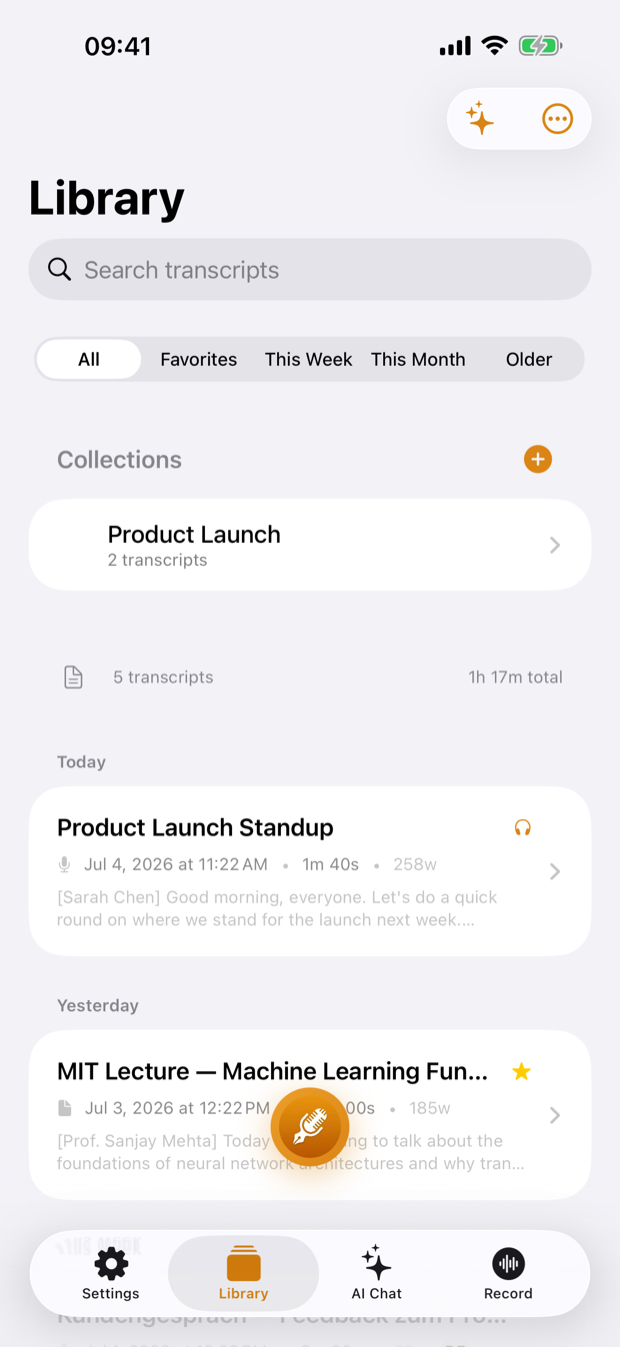
- Tap the Record tab at the bottom right, or the floating record button on the Library tab.
- Tap the large record button. The screen shows the elapsed time and a live waveform; the Lock Screen shows a Live Activity with a Stop button so you can put the phone in your pocket.
- Tap stop when you are done. The transcript is ready within moments and appears at the top of the Library.
- Open it. Tap any word to play the audio from that point, and use the Clean button at the top to hide filler words.
If the recording has several people in it, ThinkScribe labels them Speaker 1, Speaker 2 and so on. Tap a label to name a speaker; that name is remembered for future recordings. See teach ThinkScribe who is speaking.
Transcribe an audio file from another app
- In WhatsApp, Voice Memos, Files or any app that shows a Share button, share the audio or video file.
- Choose ThinkScribe in the share sheet. It confirms Added to ThinkScribe. Open the app to transcribe.
- Open ThinkScribe. The file is transcribed in the background and lands in the Library.
You can also tap Import Audio File on the Record tab to pick a file from Files. Transcribing WhatsApp voice notes has the details for that particular case, and the same share sheet is how you turn a long voice message into text from Telegram, Signal or Messages.
For a recording you made yourself, Voice Memos transcription on iPhone covers what Apple's own app already gives you and where it runs out.
Ask the AI about a recording
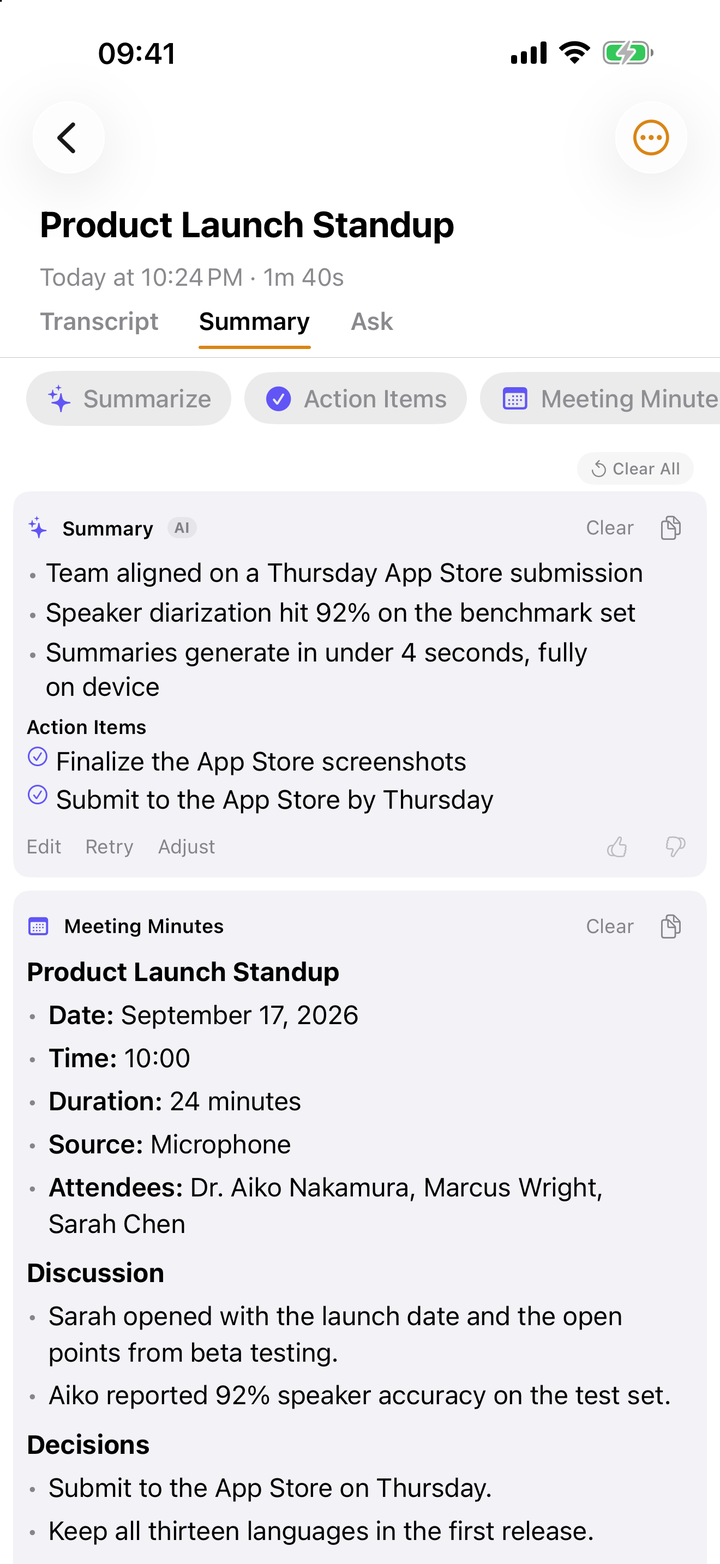
Open any transcript and tap the sparkles AI button. The AI Assistant sheet has quick actions for Clean Transcript, Summarize, Action Items, Meeting Minutes, Executive Brief and Mind Map, plus a chat where you can ask questions like What are the key takeaways? Answers cite the lines they came from, and tapping a citation plays that part of the audio. The AI Chat tab does the same across your whole library.
Where to go next
- Settings is the first tab. The sections you will use most are Voice Keyboard, Transcription Engine, Language, iCloud Sync, Storage and Custom Dictionary.
- Add ThinkScribe to Control Center for one-tap Start Recording and Voice Typing controls, or add the Quick Record widget to your Home Screen.
- Say Start a ThinkScribe recording to Siri to begin recording without touching the phone.
- If you wear an Apple Watch, the ThinkScribe watch app records on your wrist and sends the audio to your iPhone. See record on Apple Watch.
Frequently asked questions
Why does the keyboard need Full Access?
iOS keeps keyboards in a sandbox that cannot reach the microphone. Full Access lets the ThinkScribe keyboard communicate with the ThinkScribe app on the same phone, which does the listening and transcribing. That communication never leaves your device, and the keyboard does not connect to the internet.
Does it work on iPad?
Yes. ThinkScribe is a universal app, so the same install and the same purchase cover iPhone and iPad. The keyboard, recording, import and AI features are all there, with more room for the transcript and the AI panel side by side.
Does transcription work offline?
Yes. Apple Speech and the optional Parakeet engine both run on the device, as do speaker identification and the AI assistant. You can transcribe in airplane mode.
How long can a recording be?
There is no fixed limit in the app; hour-long lectures and meetings are normal. Long recordings are transcribed in chunks so the phone stays responsive, and you can leave the app while it works.