Speaker identification: name who is speaking in a transcript
How speaker identification works in ThinkScribe: name Speaker 1 once, enroll a colleague, fix a wrong label, and merge duplicate speakers.
A meeting transcript is only useful if you can tell who said what. Speaker identification in a transcript is what makes that possible: ThinkScribe separates voices automatically, labels them Speaker 1, Speaker 2 and so on, and, once you name a voice, remembers it. The next recording with the same person comes out already labeled. This guide shows how to name, enroll, correct and merge speakers on Mac and iPhone.
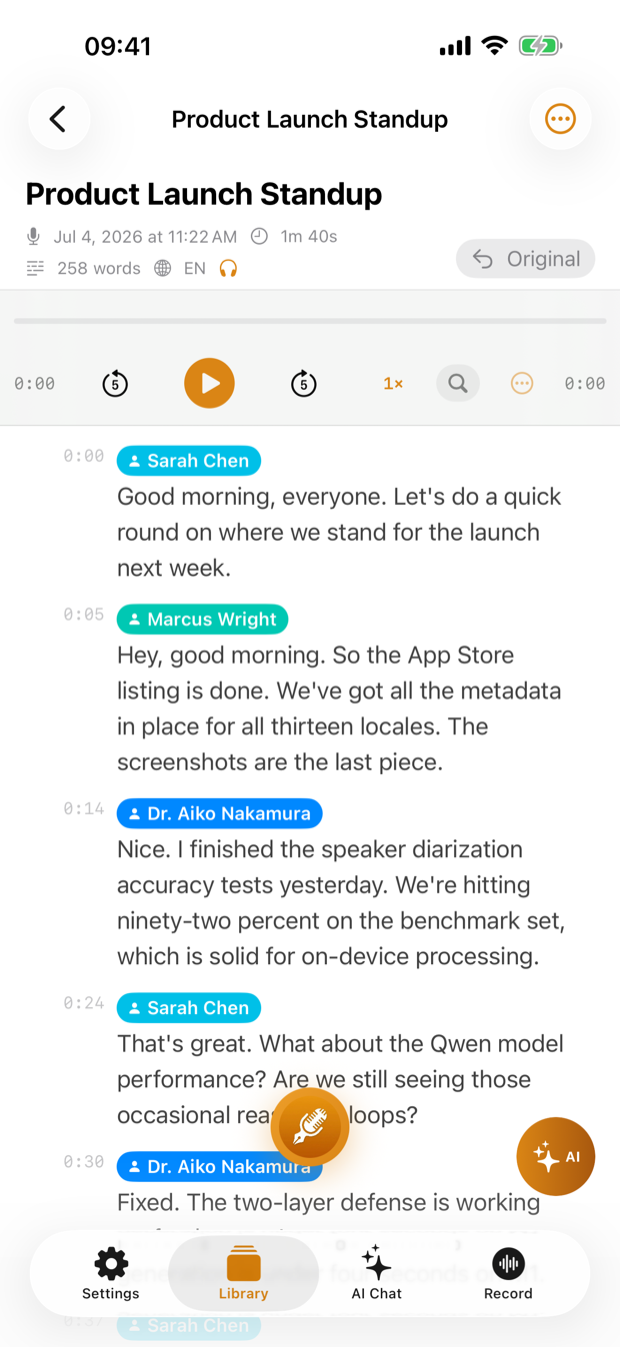
How speaker identification works in a transcript
Every recording with more than one voice goes through two on-device steps after transcription: the audio is split into turns by voice, and each turn is compared with the voices ThinkScribe already knows. A known voice gets its name; an unknown one gets a generic label. Nothing is uploaded, and the voice profiles are small mathematical fingerprints, not recordings.
Speaker identification is on by default. The switch is under Settings > AI & Models > Speaker Identification on Mac, and under Settings > Speaker Identification on iPhone.
What a voice fingerprint actually is
The word fingerprint is doing real work here, and it explains most of the results you will see.
Any system that recognizes voices turns a stretch of speech into a list of numbers, usually a few hundred of them. The list describes the voice rather than the words: pitch, timbre, the resonance of the vocal tract, speaking rhythm. Two samples of the same person saying entirely different sentences sit close together; two different people sit further apart. The numbers mean nothing to a human, and the audio cannot be reconstructed from them.
Naming a voice stores that list under a name. In a later recording, each stretch of speech becomes a new list and is compared with the stored ones, giving a similarity score. Clear the threshold and the name is applied; fall short and the voice is treated as someone new.
That threshold is a trade-off no setting escapes. Loose, and a colleague with a similar voice inherits your name. Tight, and you become a new speaker on the morning you have a cold. This is why correcting a label matters more than it looks: the correction is the only information the system gets about where the line was wrong. How speaker diarization and speaker recognition work covers the whole pipeline.
Name a speaker from a transcript
The easiest way to teach ThinkScribe is to name people as you read.
- Open a transcript that shows Speaker 1, Speaker 2 and so on.
- On Mac, click a speaker badge next to any line. On iPhone, tap the speaker label.
- In the Rename Speaker popover, type the person's name, or pick them from the Known Speakers list if they already exist.
- Click Save. Every line by that voice in the transcript is relabeled, and the voice is stored as a known speaker.
From now on, when that person appears in a new recording, ThinkScribe labels them by name.
Enroll someone on purpose
If you want a colleague or a client recognized before their first meeting, enroll them with a clean sample.
- Open Settings > AI & Models and click Manage… next to Known Speakers (on iPhone: Settings > Speaker Identification > Manage Known Speakers).
- Click Add Speaker.
- Enter the name, then either click Record and have them speak for 20 to 30 seconds on their own, or click Import Audio File and pick a recording where only they are talking. A voice message they sent you works well.
- Click Save.
Longer, cleaner samples produce better recognition. A sample with two voices or with music in the background will confuse the profile.
Why one person is sometimes split into two speakers
This is the most common complaint about any speaker-labelling system, and the causes are nearly always in the audio rather than the software.
- Short turns. A one-word answer is less than half a second of speech, not enough for a stable fingerprint. Short interjections attach themselves to whoever was speaking around them, or become a speaker of their own.
- Crosstalk. When two people talk at once, the segment holds both voices and its fingerprint lands between them. Nobody matches it well, so it becomes someone new.
- A changed voice. A cold, a hoarse morning, shouting over noise or plain tiredness shifts the numbers enough to miss the threshold.
- A different microphone. A headset, a laptop microphone and a phone on the table capture the same voice very differently, so someone who joins the second half of a meeting on another device often arrives as a new speaker.
- Distance and room. Moving away from the microphone mixes more of the room into the voice, so a person who starts at the table and ends up pacing can split in two.
- Phone and call audio. Calls are compressed, noise-suppressed and narrow in bandwidth, which strips out detail the fingerprint relies on.
The reverse failure, two people sharing one label, has the same roots: similar voices, a distant microphone, or too little speech from the quieter person.
What to do when a label is wrong
Fix labels while you still remember the meeting, and start with the earliest confident example of a voice rather than one in the middle of a crosstalk.
- One person, two labels: on Mac, click one of the badges and choose Merge Speaker…, then pick the other label. On iPhone, rename the second label to the same name.
- Two people, one label: enroll the second person with a clean sample, then run detection again (Re-detect Speakers on iPhone, Retranscribe on Mac) so the two profiles pull the voices apart.
- Wrong name on a known voice: rename the badge to the right person. ThinkScribe records the correction so the same mistake is less likely next time.
- A label you never want: on Mac, use Pin Speaker on the profiles you care about so automatic cleanup never removes them.
Interviews, panels, lectures and calls
The recording situation decides how much work is left for you afterwards, and the four common ones behave very differently.
An interview is the easy case: two voices taking turns, close to the microphone. Enroll yourself, let the guest be labeled automatically, and rename them once afterwards. Consistent labels matter most for interview transcripts in research, where the attribution ends up in the analysis.
A panel is the hard case: five or six voices, frequent interruptions, often one microphone for the room. Expect more speakers than there are people, expect the quietest participant to be merged into someone else, and plan a pass of merging and renaming. A round of introductions at the start helps a great deal, because it gives every voice a clean, uninterrupted sample early on.
A lecture sits between the two. One voice dominates and is recognized easily, and questions from the room arrive as separate speakers, which makes them easy to find even when the questioners are never named.
A phone or video call is limited by its audio rather than by the number of people. Compression and noise suppression remove detail, and some call apps mix every remote participant into one channel, which no software can undo. For a one-to-one call recorded with System audio, the two sides come out cleanly separated, because your microphone and the call audio are distinct sources.
Known speakers sync between devices
If Sync Across Devices is on, speaker profiles travel with your transcripts through your own iCloud. Name a client on your iPhone after a coffee meeting, and the recording of tomorrow's video call on your Mac is labeled with their name. The sync guide explains what is included.
Frequently asked questions
Does speaker identification work offline?
Yes. Voice separation and matching run entirely on your Mac or iPhone. Profiles are stored on the device, or in your own iCloud if you turn sync on.
How many speakers can it tell apart?
There is no hard limit, but recognition is most reliable with up to six or eight regular voices. Large panel discussions are separated into turns, though rare voices will stay generic until you name them.
Can I turn it off for a private recording?
Yes. Switch off Speaker Identification in Settings before recording, and the transcript will be a single speaker. You can also delete any known speaker from the Known Speakers list at any time.
Are voice profiles recordings?
No. A profile is a compact numerical fingerprint of a voice. The sample you record or import is used to compute it and is not kept as a separate recording.