Sync transcripts between iPhone, iPad and Mac
How to turn on iCloud sync for transcripts, what moves between iPhone, iPad and Mac, what stays put, and how deletion and recovery work across devices.
ThinkScribe is one app across Mac, iPhone, iPad and Apple Watch, and one purchase covers all of them. The content follows you only if you decide it should: sync is off until you turn it on, and when you do, it runs through your own iCloud account, in a private database that we cannot read. This guide turns it on, explains what travels and what does not, sets out why sync is not the same thing as a backup, and covers the corner cases.
Turn sync on
On Mac:
- Open Settings from the sidebar and choose the Transcription tab.
- Under iCloud Sync, turn on Sync Across Devices.
- ThinkScribe asks to restart so the library can reopen in sync mode. Click Restart Now.
On iPhone or iPad:
- Open the Settings tab and scroll to iCloud Sync.
- Turn on Sync Across Devices and confirm the restart.
Do this on every device you want in the loop, signed in to the same Apple ID with iCloud Drive enabled. Existing transcripts upload in the background; a large library can take a while on the first pass, and the status line under the toggle reads Syncing transcripts, summaries, collections & speaker profiles while it works.
What syncs
- Transcripts: the text, timestamps and speaker labels of every recording and import.
- Summaries and AI results: summaries, action items, minutes and other quick-action output stored with a transcript.
- Collections: the folders you sort transcripts into.
- Speaker profiles: the voices you have named, so a person recognized on your iPhone is recognized on your Mac.
- Deletions: something you delete on one device moves to Recently Deleted on all of them.
What does not sync
- Audio recordings, by default. They can be large, so new audio stays on the device that recorded it. If you want the audio too, turn on the second toggle, Sync Audio to iCloud. It uses your iCloud storage and needs Sync Across Devices to be on.
- Settings. Engine choice, shortcuts, keyboard options and export preferences are per device and are never uploaded.
- Downloaded models. Each device downloads its own speech and AI models.
A note that travels
The typical loop looks like this:
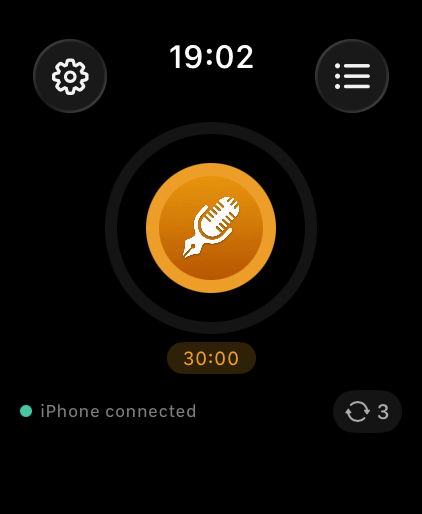
- You tap record on your Apple Watch during a site visit. The audio is sent to your iPhone on its own, which is how recordings made on the watch reach the rest of your devices.
- Your iPhone transcribes it in the background and names the speakers it knows.
- By the time you sit down at your Mac, the transcript is in the library. You ask the AI Assistant for the action items and export a PDF.
The audio for that note is on the iPhone. If you want to play it on the Mac as well, Sync Audio to iCloud puts it there.
What happens when you delete something on one device
Deleting a transcript moves it to Recently Deleted on every synced device. It stays there for 30 days and can be restored from any of them. Delete Permanently removes it, and its audio, everywhere. Delete Audio Only keeps the text and removes the recording from the current device.
The implication is worth stating plainly. Sync propagates every change, including the ones you regret: an accidental delete on a phone is an accidental delete everywhere within seconds. The recoverable window, not the sync, is what protects you.
Sync is not a backup
The two words get used as if they mean the same thing, and the difference is the most useful idea in this guide. Sync keeps several devices in the same state: the newest version of everything, present everywhere. A backup keeps a copy of a past state, so you can go back to how things were.
So sync copies your mistakes as faithfully as your work, and a library on three synced devices exists in one state, not three. It is not three copies in any useful sense. Sync is for convenience, backup is for recovery, and neither substitutes for the other.
What a real backup of a transcript library looks like
A real backup is separated from the original in four ways.
In time. It captures a state from before the mistake. A copy that updates continuously is a mirror, not a backup, because it mirrors the deletion too.
In place. It lives on different hardware, ideally in a different building or account. The rule of thumb is three copies, on two kinds of storage, one of them off-site.
In dependence. It should open without the account it came from, and preferably without any one application. A folder of exported text or Markdown qualifies, and is still readable years later.
Tested. A backup you have never restored is a hypothesis. Restore one, once, and check the text comes back intact.
Making a backup of your library
Backup & Restore (under Settings > About on Mac, and in Settings on iPhone) exports the whole library, transcripts and audio, to a single file, and Import Library… brings it back on the same or another device. That file is what belongs on an external drive or in your own off-site storage. The export guide covers how to back up the whole library, and exporting transcripts as Markdown or text gives you a second copy that depends on no application at all.
Turning sync off
Switch off Sync Across Devices and new transcripts stay on the device they were made on. Data already in iCloud stays there until you remove it: on a Mac, System Settings > Apple Account > iCloud > Manage Storage > ThinkScribe; on iPhone, Settings > Apple Account > iCloud > Manage Account Storage > ThinkScribe.
Sync on a shared or work-managed Mac
On a shared Mac, what matters is the macOS user account, not the machine. Each account signs in to its own Apple Account and keeps its own app data, so a family Mac where everyone has a login keeps libraries separate. A shared login does not: with sync on, everything anyone records joins your iCloud account. If you share a login, leave sync off.
On a work-managed Mac, a management policy can restrict or block personal iCloud accounts and iCloud Drive. If the toggle will not stay on, or nothing uploads, an organisational restriction is the usual explanation and IT can confirm it in seconds. There is also a non-technical question: whether recordings of colleagues, clients or patients made on company equipment may travel to a personal iCloud account at all. Settle that before the first meeting.
Nothing has appeared on the other device
Work down this list; the cause is almost always in the first three.
- The same Apple Account on both devices, with iCloud Drive on. Two accounts never see each other's data.
- Sync Across Devices turned on separately on each device, and the app restarted when it asked.
- The app opened on the receiving device. Changes come down when it opens or returns to the foreground.
- The first sync still running. A large library takes a while, and the status line under the toggle says so.
- A working network at both ends, enough free iCloud storage (a full account stops accepting data quietly), and no Low Power Mode holding uploads back until the device charges.
- Audio specifically. It does not travel unless Sync Audio to iCloud is on, on both devices. A transcript arriving without its recording is expected, not a failure.
Frequently asked questions
Can ThinkScribe read my synced transcripts?
No. Sync uses the private database of your own iCloud account, which only your devices can open. We have no server that sees your transcripts, no account of ours, and no way to access your iCloud data.
Does sync need the app to be open?
Changes upload when the app is running and download when it opens or comes to the foreground. A transcript made on your iPhone at lunch is there when you open ThinkScribe on your Mac afterwards.
Why is a recording missing its audio on my other device?
Because audio does not sync unless Sync Audio to iCloud is on. The transcript is there; the recording stayed on the device that made it. Turn on the audio toggle on both devices if you want playback everywhere.
Do I need iCloud sync to use ThinkScribe on several devices?
No. Each device works fully on its own, and one purchase already unlocks all of them. Sync is only about your content following you.