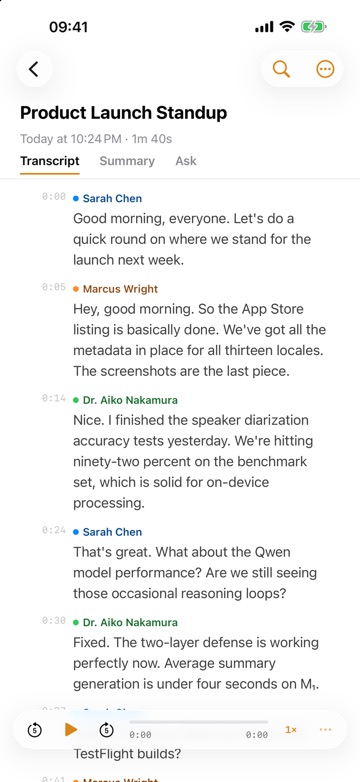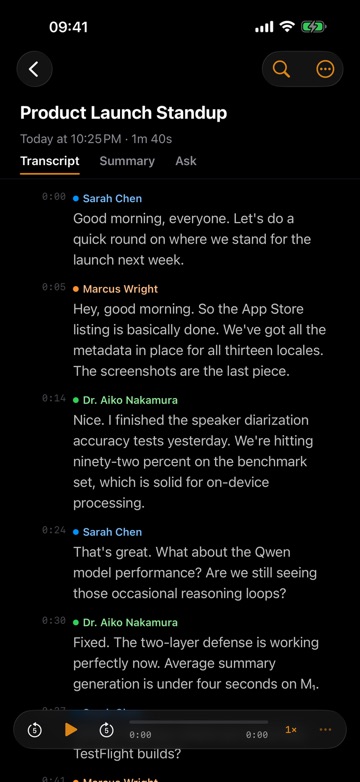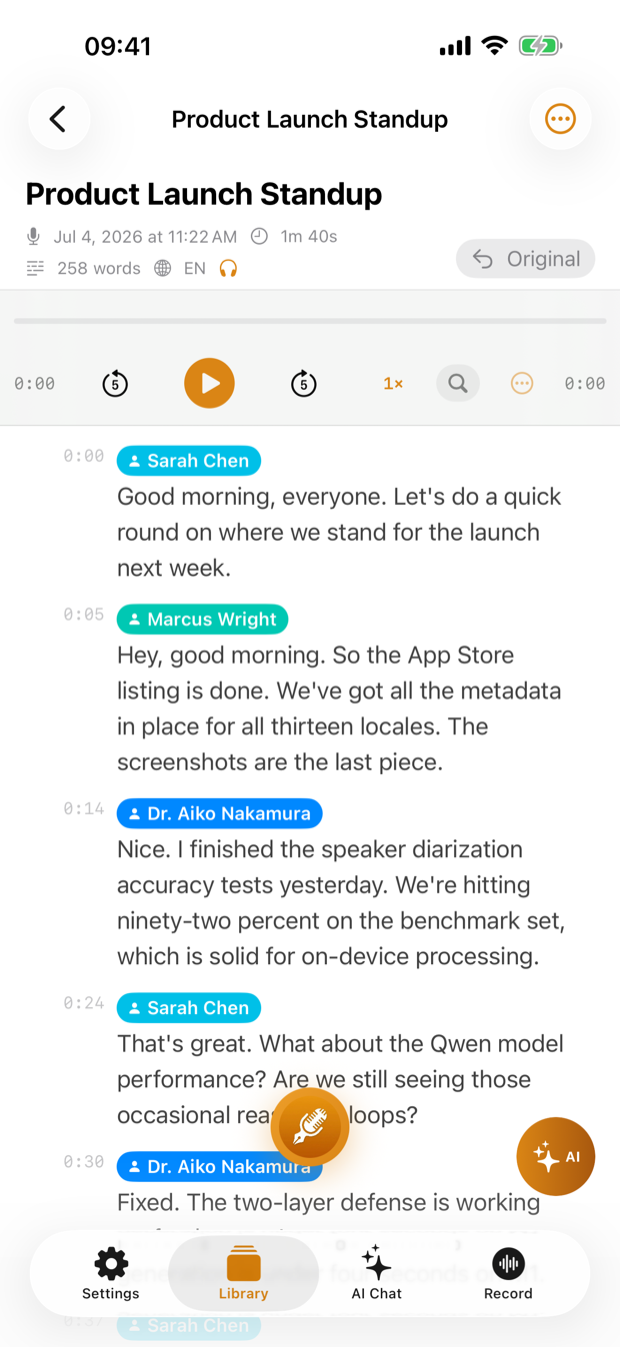
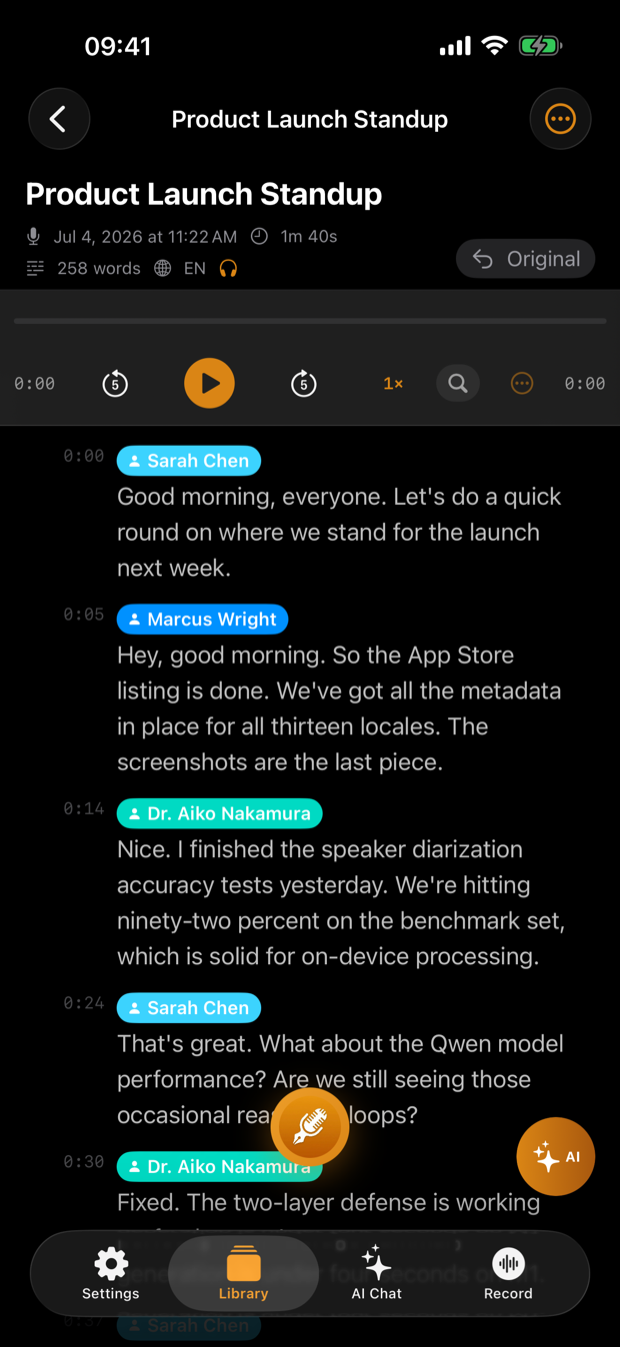
A good interview transcription app for journalists does four jobs: it records cleanly, it shows who said what, it gets you to the quote fast, and it lets you check every quote against the tape before it runs. ThinkScribe does all four on iPhone, iPad and Mac. The transcript is made on your device and works offline, there is no account, and your recordings and transcripts are never sent to us.
That last point matters more in journalism than almost anywhere else. A recording can identify a source by voice alone. Keeping it on hardware you control, behind your device passcode, is an easier promise to make to a nervous source than a list of services they have never heard of.
How to transcribe an interview in ThinkScribe
- Set the language first. On the Record tab, tap the language chip and pick the language the interview will be in (ThinkScribe offers 28). If Auto-detect is offered on your device you can use it, but choosing the language yourself is the safer habit.
- Record. In person, tap the record button on your iPhone and put the phone between you and the source. For a remote interview, use your Mac: Record System Audio (⇧⌘R) captures Zoom, Teams, FaceTime and other app audio, and the menu bar's Record Meeting (Mic + App) adds your microphone so both sides are on the tape.
- Stop and let it finish. Tap Stop. The full transcript, with speakers separated, is made on your iPhone moments after you stop.
- Name the speakers. Long-press a speaker badge in the transcript and choose Rename Speaker.... Every segment with that label updates at once.
- Find the quote. Tap the magnifier and use Find in transcript, with previous and next to move between hits.
- Hear it before you use it. Tap the line to play the audio from that point. Long-press the line and choose Copy with Timestamp to paste it into your draft with its time attached.
- Export. From the transcript's "..." menu, choose Export and pick TXT, Markdown, PDF, JSON, SRT or VTT. On a Mac you can also export a Word Document.
Before the interview: consent and the phone call problem
Recording law differs by country and, in some places, by state or province. Some places require every party to agree, others only one. Follow local law and your newsroom's policy. The simplest habit is to ask on the tape: "Are you OK with me recording this?" The answer then sits in the transcript, time-stamped, next to everything else.
Remote interviews need a plan. ThinkScribe on iPhone does not record phone calls. If a remote interview matters, move it to a call app on your Mac (FaceTime, Zoom, Teams or similar) and record it there with system audio. No bot joins the call, so your source sees only you. In Settings > Recording, turn on Notify when call starts so the Mac reminds you to press record, which is the step people forget when a call starts early.
For in-person interviews, a few details make the transcript much better:
- Put the phone closer to the source than to yourself.
- Ask the source to say and spell their name at the start. It gives you the spelling and a clean sample of their voice.
- Avoid talking over the answer. Crosstalk is where every transcript, human or machine, gets worse.
- Put the phone face down if the screen distracts either of you. The recording keeps going.
Naming speakers without exposing sources
Speakers are separated automatically as "Speaker 1", "Speaker 2" and so on. Renaming them turns a wall of text into a readable Q and A, and named voices are recognized automatically in new recordings. That is useful for people you interview often: a press officer, a council member, a researcher you call every few weeks. When a voice is a near match, ThinkScribe shows Possible matches that you can Confirm or Reject.
For a confidential source, think before you type a real name. The name you choose appears in the transcript and in every export. A code name ("Source A") keeps the working copy safe to share with an editor. You can remove a saved voice later in Settings > Speaker Identification > Manage Known Speakers, where you can also rename, merge or delete. The full walkthrough is in speaker names in ThinkScribe.
Finding the quote, then checking it against the tape
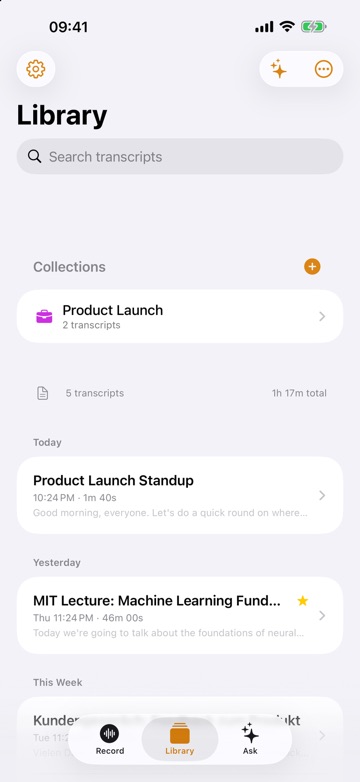
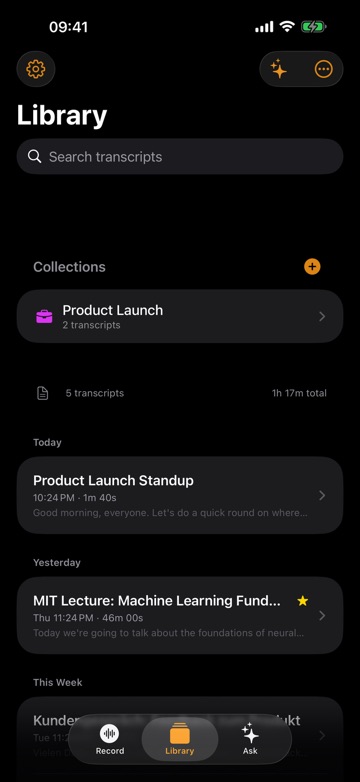
You rarely remember which interview a line came from. The Search transcripts field in the Library searches the full text of every transcript and title, so "affordable housing" finds every interview where it was said. There is more on this in searching inside audio recordings.
Once you are in the right transcript, a careful routine protects you:
- Read the original wording. ThinkScribe shows cleaned text by default, with hesitations and fillers removed. That reads well, but it is not verbatim. Before you put quotation marks around anything, open "..." > Show Original to see the raw text.
- Listen to every line you quote. Tap the line and hear it. Machine transcripts can mishear names, numbers and short words that flip meaning, such as "can" and "can't".
- Keep the timestamp with the quote. Copy with Timestamp means your fact-checker can find the moment without asking you.
- Teach it your beat. Add the names, places and acronyms you hear every week to the Custom Dictionary (iPhone Settings > Advanced; Mac Settings > Vocabulary).
A summary, or a question asked about the recording, is good for getting your bearings in a long interview. Neither is a quote. The quote is what you heard on the tape.
Source custody
Custody comes down to three questions.
- Who holds the file. No account and nothing sent to us. Transcription runs on your device and works offline, so you can transcribe on a train or in a building with no signal.
- Who can open it. Use a strong device passcode, and keep sensitive interviews off shared devices.
- Where copies go. iCloud Sync is off by default. If you turn it on, transcripts sync through your own iCloud account (provided by Apple), and audio syncs only if you also turn on Sync Audio to iCloud. Decide per story. Deleted recordings stay in Recently Deleted for 30 days, so check there when you clean up.
Check your own professional and legal obligations, and your newsroom's rules, for anything sensitive.
Getting the transcript to the desk
Markdown or TXT paste cleanly into your draft, PDF suits the archive or a legal read, SRT or VTT subtitles line up with video cuts, a Mac can export a Word Document for editors, and Share Audio sends the original recording to the audio producer.
For a story with several interviews, create a collection for it in the Library and use Export All when you file. Longer research-style projects, with consistent transcript formats and anonymising as you go, are covered in transcribing research interviews. For the bigger picture across iPhone, iPad and Mac, see the complete guide to voice to text, and for everything interview related, the interview transcription page.
Frequently asked questions
What is the best way for a journalist to transcribe interviews?
Record on a device you control, get a machine transcript with speaker labels, then check every quote against the audio before you use it. ThinkScribe does the first two on your iPhone, iPad or Mac without sending the recording to us, and lets you tap any line to hear it for the third.
Can ThinkScribe record phone calls on iPhone?
No. ThinkScribe on iPhone does not record phone calls. For remote interviews, take the call in an app on your Mac, such as FaceTime, Zoom or Teams, and record it with system audio. No bot joins the call.
Is a machine transcript accurate enough to quote?
It is accurate enough to find the quote, not to print it unchecked. Open Show Original to see the raw wording rather than the cleaned text, then tap the line and listen. Names, numbers and negatives are where errors hide.
Is my source's recording uploaded anywhere?
ThinkScribe has no account, and your recordings and transcripts are never sent to us. Transcription happens on your device. iCloud Sync is optional and off by default; if you turn it on, it uses your own iCloud account, provided by Apple.
Can I transcribe an interview I recorded with another app?
Yes. On iPhone, use Import Audio File from the Record tab or share the file to ThinkScribe from another app. On a Mac, use Import File (⌘I) or drag the file onto the window. Common formats such as m4a, mp3, wav and mp4 work.