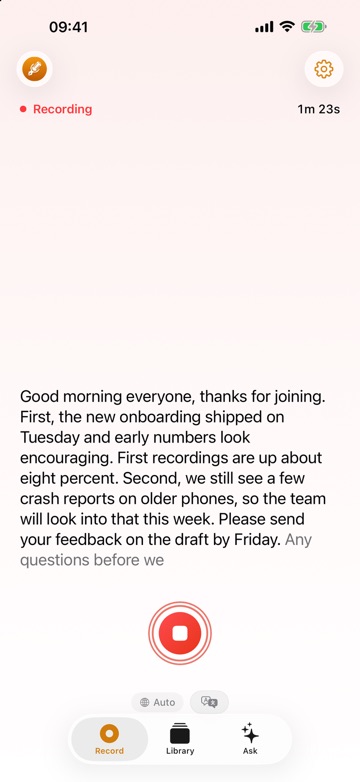
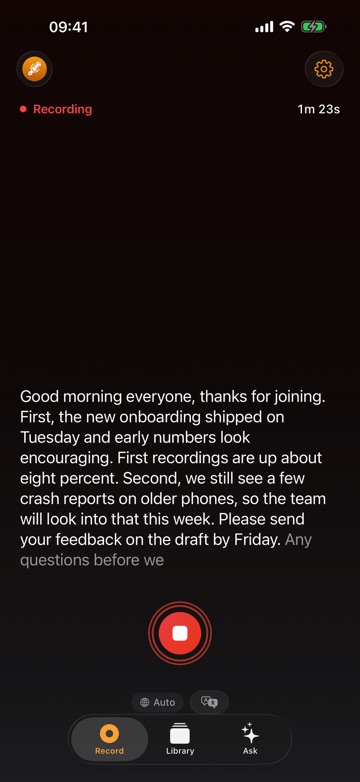
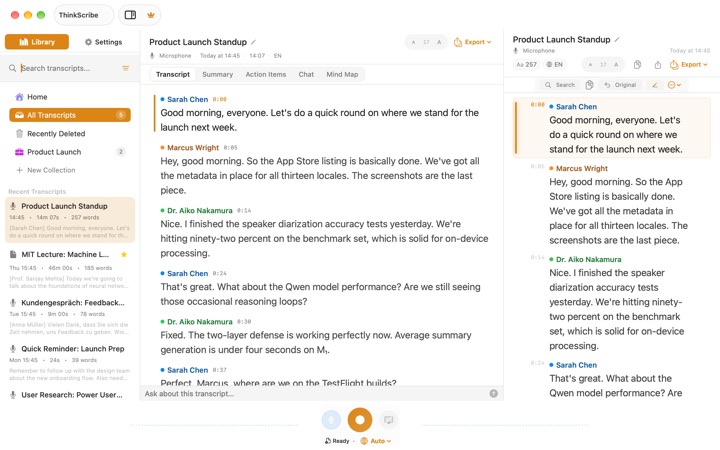
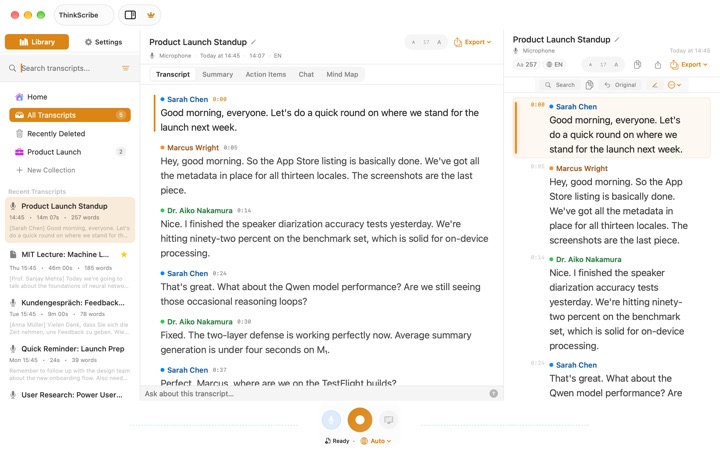
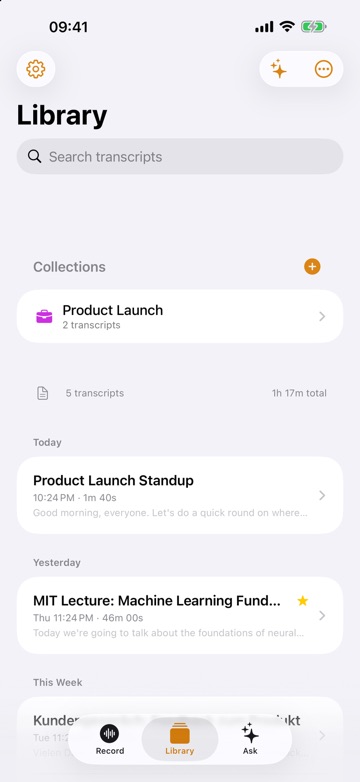
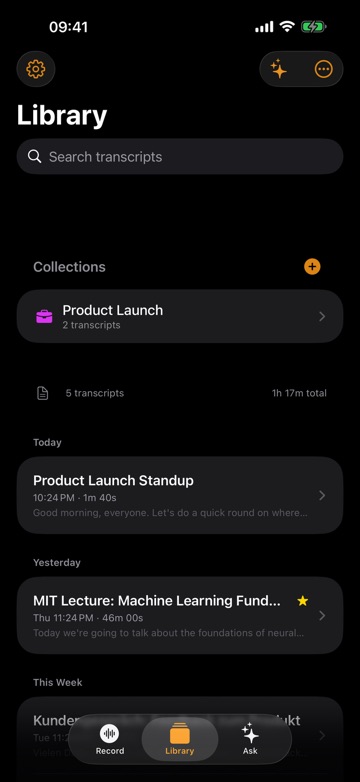
You can only search inside audio recordings once they are text. That is the whole trick. A folder of voice memos is a pile of files with dates for names, and the only way to find "the bit where Sarah mentioned the budget" is to listen. Turn the same recordings into searchable transcripts and the question becomes a search: type "budget", see every recording where it came up, tap the line, and hear it.
ThinkScribe does this for every recording you make or import. Each one is transcribed on your device, and the Library search looks through the full text of every transcript and every title. Inside a recording, Find in transcript takes you to each match, and tapping a line plays the audio from there.
This article covers how search works in ThinkScribe, how to organize recordings so they stay findable, what to do when you do not remember the exact words, and how to make names and terms come out spelled right so search can find them.
Why audio is hard to search
A recording is a waveform. There are no words in it until something listens and writes them down. File names and dates help a little, but "New Recording 47" tells you nothing, and you rarely remember which Tuesday a thing was said.
A transcript fixes this, as long as three things hold:
- Every recording is transcribed, not just the ones you remembered to process.
- The words are spelled the way you will search for them. A name misheard as a different word is invisible to search.
- The text stays tied to the audio, so a match takes you to the moment and you can hear the tone, not just read the words.
ThinkScribe is built around all three.
How to search inside your recordings in ThinkScribe
- Record or import audio as usual. Each recording is transcribed after you stop, or after import, so everything in your Library has a transcript.
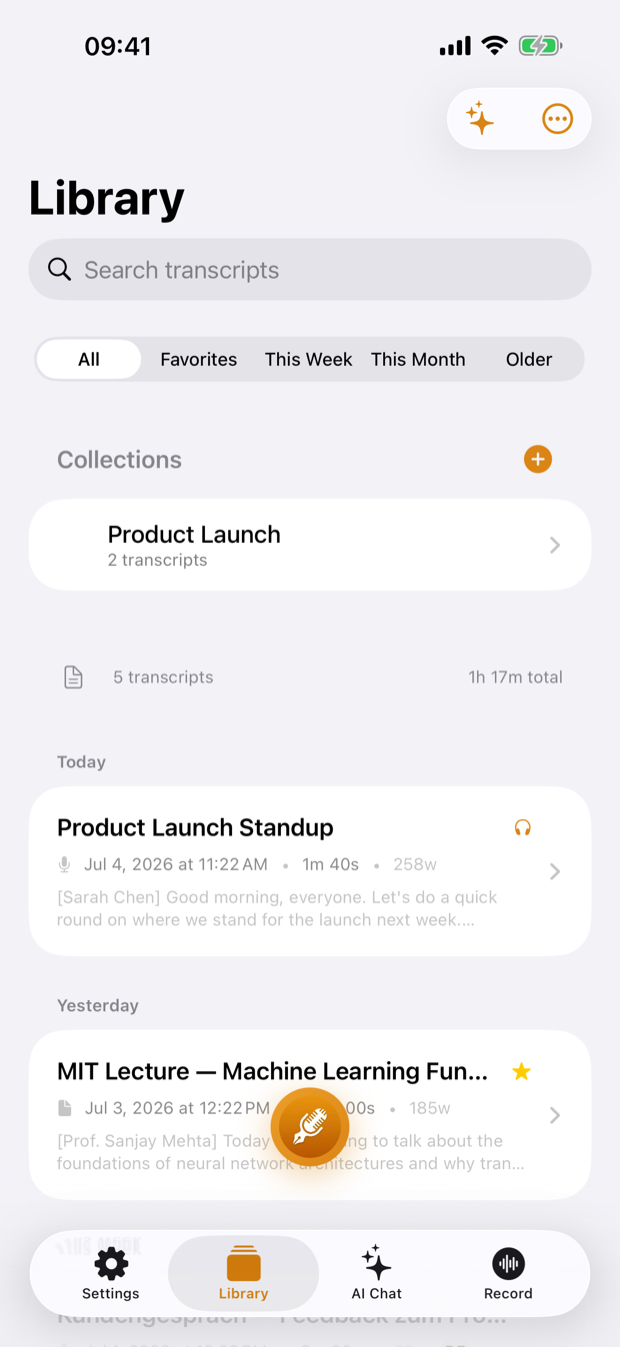
- Open the Library tab and tap the Search transcripts field.
- Type a word or name. Results include every recording whose transcript or title contains it.
- Open a result. In the transcript, tap the magnifier and use Find in transcript to step through each match with previous and next.
- Tap the matching line. Playback jumps to that point, so you hear exactly how it was said.
- To keep the passage, long-press the line and choose Copy with Timestamp, ready to paste into notes or an email.
Organize recordings so search stays useful
Search works best on a library that has some shape. A few habits help.
Use collections for projects. In the Library, tap Collections and Create a Collection for a client, a course or a research project. A collection groups related recordings, and you can ask questions across all of them. Searching the Library still finds everything; the collection gives you a narrower place to look and to ask questions.
Give recordings real titles. Titles are part of the search. "Weekly sync, launch plan" is found by both "sync" and "launch", while "New Recording" is only ever found by its contents.
Use Filter and Favorite. The Library's "..." menu has Filter, and a transcript's "..." menu has Favorite. Starring the handful of recordings you return to often keeps them close.
When you do not remember the exact words
Search finds words. Memory often keeps ideas: "the meeting where we decided to delay the launch" may never have included the word "delay".
That is the job for Chat. On one recording, ask in plain language: "What decisions were made?" or "What did Sarah say about the budget?". Across many recordings, open a collection and ask across all of them at once, for example "Which interviews mentioned the new pricing?".
On a Mac, Chat answers show sources you can click to jump to the moment. On iPhone, Chat answers are plain text, so once you know which recording and roughly what was said, use Find in transcript to go to the exact line.
A good pattern: ask Chat to narrow it down, then use search to land on the words.
Make names and terms findable
The most common search failure is not search at all. It is a transcript where the word you are looking for was written differently. A colleague called Siobhan becomes "Shivon", your product "Kairo" becomes "Cairo", and neither shows up when you search the right spelling.
The fix is the Custom Dictionary. On iPhone it is in Settings > Advanced > Custom Dictionary; on a Mac, Settings > Vocabulary. Add people's names, company and product names, place names and jargon. Future transcripts use those spellings. ThinkScribe also adds words automatically when you correct the same word three or more times in your transcripts.
A spelling you teach once makes every future recording searchable by that name. The custom vocabulary guide covers what to add and how.
Two more habits help:
- Pick the spoken language before recording. A recording transcribed in the wrong language is full of words that match nothing. Use the language chip on the Record tab, or Auto-detect when it is offered.
- Name the speakers. Speaker names make a transcript much easier to scan once search has brought you to the right place.
Take your searchable text elsewhere
Sometimes you want your transcripts in the tool you already search every day: a notes app, a document system, a research database.
On iPhone and iPad, export a transcript as TXT, Markdown, JSON, PDF, SRT or VTT. On a Mac, add Word Document to that list. A collection has Export All, and Settings > Backup & Restore has Export Library... for everything at once. Plain text and Markdown are the easiest to search in other apps; JSON suits your own scripts and tools. See how to export transcripts for which format to pick.
Search on every device
If you record on your iPhone and review on your Mac, turn on optional iCloud sync: Settings > iCloud Sync > Sync Across Devices (restart the app to apply). Transcripts, summaries, collections and speaker profiles sync through your own iCloud account, provided by Apple, so the transcript you are looking for is on whichever device is in your hand. Audio syncs only if you also turn on Sync Audio to iCloud. The iCloud sync guide walks through it.
ThinkScribe needs no account, and your recordings and transcripts are never sent to us. Sync is off by default and uses your own iCloud account only when you turn it on.
For a wider view of turning speech into text, read the complete voice to text guide, or see how ThinkScribe handles audio to text transcription.
Frequently asked questions
How do I search inside audio recordings?
Turn them into text first. In ThinkScribe every recording you make or import is transcribed, and the Library's Search transcripts field searches the full text of every transcript and title. Open a result, use Find in transcript to step through matches, and tap the line to play from that moment.
Can I search all my voice recordings at once?
Yes. The Search transcripts field in the ThinkScribe Library looks through the transcripts and titles of every recording in your library at once. To ask a question across a group of recordings rather than search for a word, put them in a collection and ask the collection.
Why can't search find a name I know was said?
Most likely the name was transcribed with a different spelling. Search for a similar-sounding word to find it, then add the correct spelling to the Custom Dictionary (iPhone: Settings > Advanced; Mac: Settings > Vocabulary) so future recordings get it right. Words you correct three or more times are added automatically.
Can I jump to the moment in the audio where a word was said?
Yes. Use Find in transcript to locate the word, then tap that line. Playback starts from that line. Long-press the line and choose Copy with Timestamp to keep a reference to the moment.
Are my recordings uploaded to make them searchable?
No. Transcription happens on your device and works offline. ThinkScribe needs no account, and your recordings and transcripts are never sent to us. iCloud sync is optional, off by default, and uses your own iCloud account, provided by Apple.