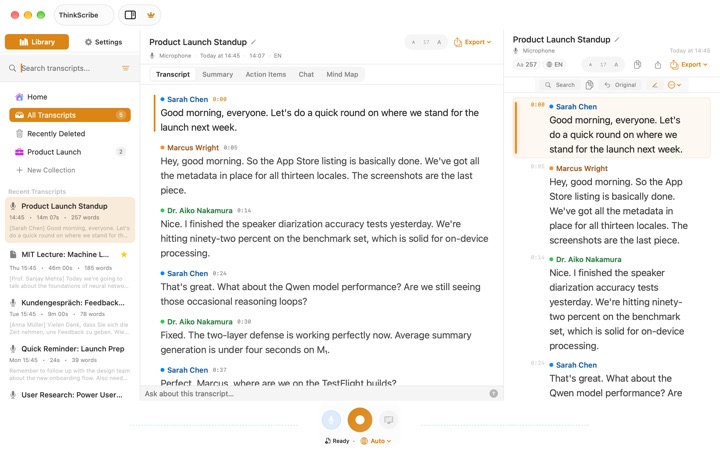
Field work is where written notes break down: gloves, rain, a clipboard in one hand and a tape measure in the other, and often no signal. A voice field notes app that works offline lets you say the observation where you stand and read it as text later. ThinkScribe records on your iPhone or Apple Watch and transcribes on your iPhone with no connection needed, so a note spoken at the bottom of a valley is searchable text by the time you are back at the truck.
There is no account, and your recordings and transcripts are never sent to us. This article is for field researchers, ecologists, building inspectors, surveyors, architects on site visits and trades who need notes that are fast to make and easy to find.
Before you go: a five-minute setup
Do these once, on Wi-Fi, before your first day in the field.
- Let the first-run setup finish. On a fresh install you can record straight away, and a better engine may download in the background ("Improving accuracy: N%"). Open ThinkScribe on Wi-Fi and let it finish so you have it before you lose signal.
- Get the AI ready if you want summaries on site. In Settings > AI Assistant, you can choose ThinkScribe AI, a one-time download that runs on your device, or Apple Intelligence, provided by Apple, on devices that support it.
- Teach it your words. Add species names, material codes, site names and abbreviations to the Custom Dictionary (iPhone Settings > Advanced > Custom Dictionary; Mac Settings > Vocabulary). Words you correct three or more times are added automatically. See custom vocabulary.
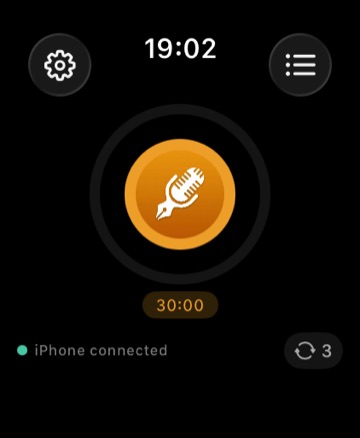
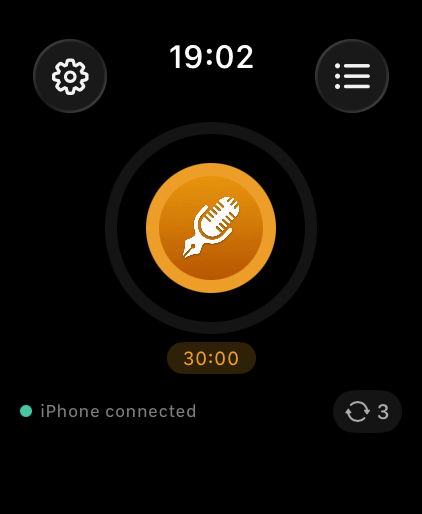
- Set up the watch. Choose a maximum recording length for the watch between 5 and 60 minutes (the default is 30) and turn on Buzz while recording if you want a reminder that the mic is live.
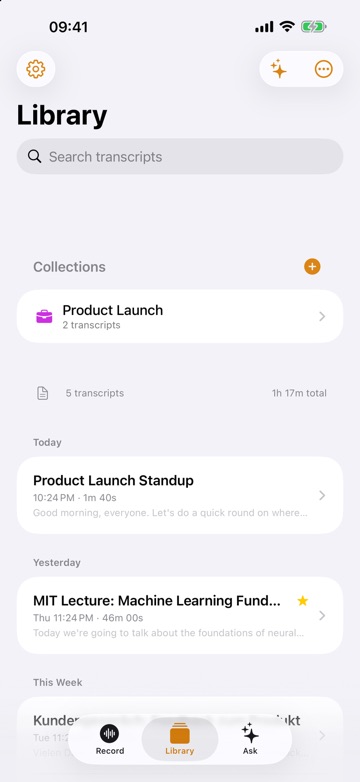
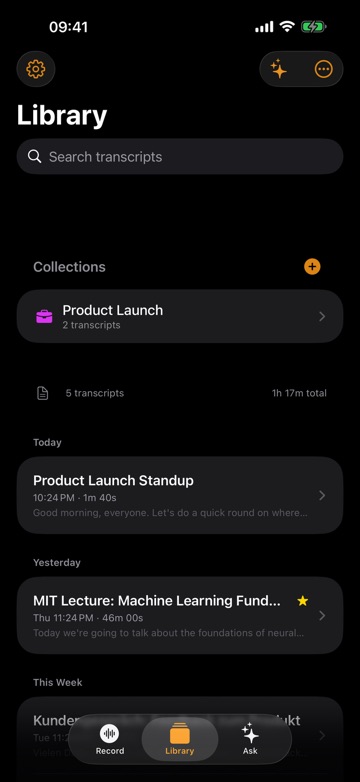
- Create a collection per site or project in the Library, so each job has its own place.
How to record field notes hands-free
- Start from the wrist. Raise your Apple Watch and tap record in the ThinkScribe app, or tap the complication that says Tap to record. Keep your iPhone with you, in a pocket or pack: the watch hands the audio to the iPhone, which does the transcription.
- Or start from the iPhone without unpacking it. Put the Start Recording control in Control Center or on the Lock Screen, or say "Start a ThinkScribe recording" to Siri.
- For one short observation, keep it short. Start a recording, say the label and the observation, and stop. A 20-second entry is still searchable text.
- Say the label first. "Site 4, north wall, 10:40." Then the observation. The label becomes the first line of the transcript.
- Stop. The transcript is made on your iPhone after you stop, with or without signal. On the watch you see "Saved on iPhone" and then "Transcribing on iPhone...".
- File it later. At the end of the day, add the recordings to the right collection. Filing in bulk is quicker than filing each note on site.
The watch app needs Pro or free transcription uses left. The detailed watch walkthrough is in recording on Apple Watch.
Say it so you can find it later
The Library's Search transcripts field searches the full text of every transcript and title. It can only find what you said, so a spoken structure pays off for months. A pattern that works for most trades:
- Where: site, station, plot, room or grid reference.
- What: the element, species or item.
- Which way: direction or position (north wall, upslope, left of the door).
- How much: measurements, with units, said slowly.
- Condition and action: what you see, and what needs to happen.
Examples:
- An ecologist: "Transect 3, point 7. Two stonechats on the gorse, male and female. Bracken encroaching on the east side."
- An inspector: "Unit 12, bathroom, ceiling. Damp stain about 30 centimeters across above the shower. Check the flat above."
- An architect: "Level 2, grid C4. Column wrap not started. Ask the contractor for the date."
- A plumber: "Harris job, kitchen. Need two 15 mil elbows and a new isolating valve."
Later, searching "Unit 12" or "stonechat" finds every note that mentions it, across every day. Numbers can come out as words or digits, so if a search for "12" misses something, try "twelve". More on this in searching inside audio recordings.
Scenarios by trade
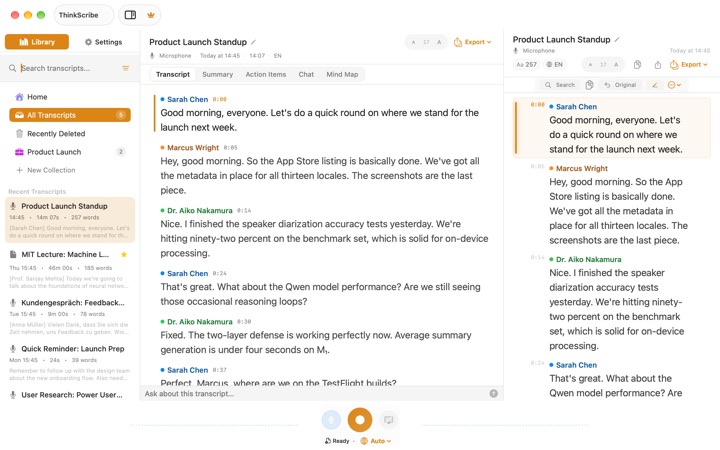
Field researchers and ecologists. Survey counts, species, weather and habitat notes, spoken as you walk. Tap any line in the transcript to hear the moment again, which helps when a name or number sounds doubtful. The Custom Dictionary does the most work here, because Latin names and local place names are the words a general speech model knows least.
Inspectors and surveyors. Work room by room or element by element, with one recording per unit if the site is large. Back at the desk, export PDF for the file or Markdown to paste into your report template.
Architects on site visits. Record the walk-round with the contractor. Summarize the recording for a summary with an Action Items list; each point links back to the moment it came from, which makes a snag list you can check.
Trades. Materials, measurements and client requests, captured before you forget them in the van. Asking the recording "What materials did I say I need?" pulls the list out of a long, rambling note. Asking a collection works across every recording for that job.
Before recording clients, colleagues or members of the public, follow local law and ask for consent.
Back at the desk: export and sync
- Export from the transcript's "..." menu as TXT, Markdown, PDF, JSON, SRT or VTT. Markdown suits reports and notes apps, PDF suits files that should not change, and JSON suits your own scripts or databases. On a Mac you can also export a Word Document. For a whole site, open the collection and use Export All. See exporting transcripts.
- Sync if you want to. iCloud Sync is optional and off by default. Turn on Settings > iCloud Sync > Sync Across Devices (then restart the app) and your transcripts, summaries and collections sync through your own iCloud account when you are back online, provided by Apple. Audio syncs only if you also turn on Sync Audio to iCloud.
Limits worth knowing
- Wind and machinery. Speech in strong wind or next to a generator will have gaps. Turn your back to the wind, cup the phone, or wait for the machine to stop.
- The watch does not transcribe by itself. Transcription happens on the iPhone, so keep it with you.
- Review before you file. Check measurements and names against the audio before they go into a report.
For the wider picture of dictation and transcription across iPhone, iPad, Mac and Apple Watch, see the complete guide to voice to text or the voice journal page.
Frequently asked questions
Does ThinkScribe work with no signal?
Yes. Recording and transcription happen on your device and work offline. Open the app once on Wi-Fi after installing so any background setup can finish before you head out. Optional iCloud Sync catches up when you are back online.
Can I record field notes on Apple Watch?
Yes. Tap record in the ThinkScribe watch app or use the Tap to record complication. The audio goes to your iPhone and is transcribed there, and the watch shows recent transcripts and a short summary.
How do I get species names and technical terms right?
Add them to the Custom Dictionary: Settings > Advanced on iPhone, or Settings > Vocabulary on Mac. Words you correct three or more times in transcripts are added automatically.
How do I turn field notes into a report?
Export the transcript as Markdown, TXT, PDF or JSON from its "..." menu, or export a whole collection with Export All. On a Mac you can also export a Word Document.
Are my field recordings uploaded anywhere?
There is no account, and your recordings and transcripts are never sent to us. iCloud Sync is optional and off by default; if you turn it on, it uses your own iCloud account, provided by Apple.