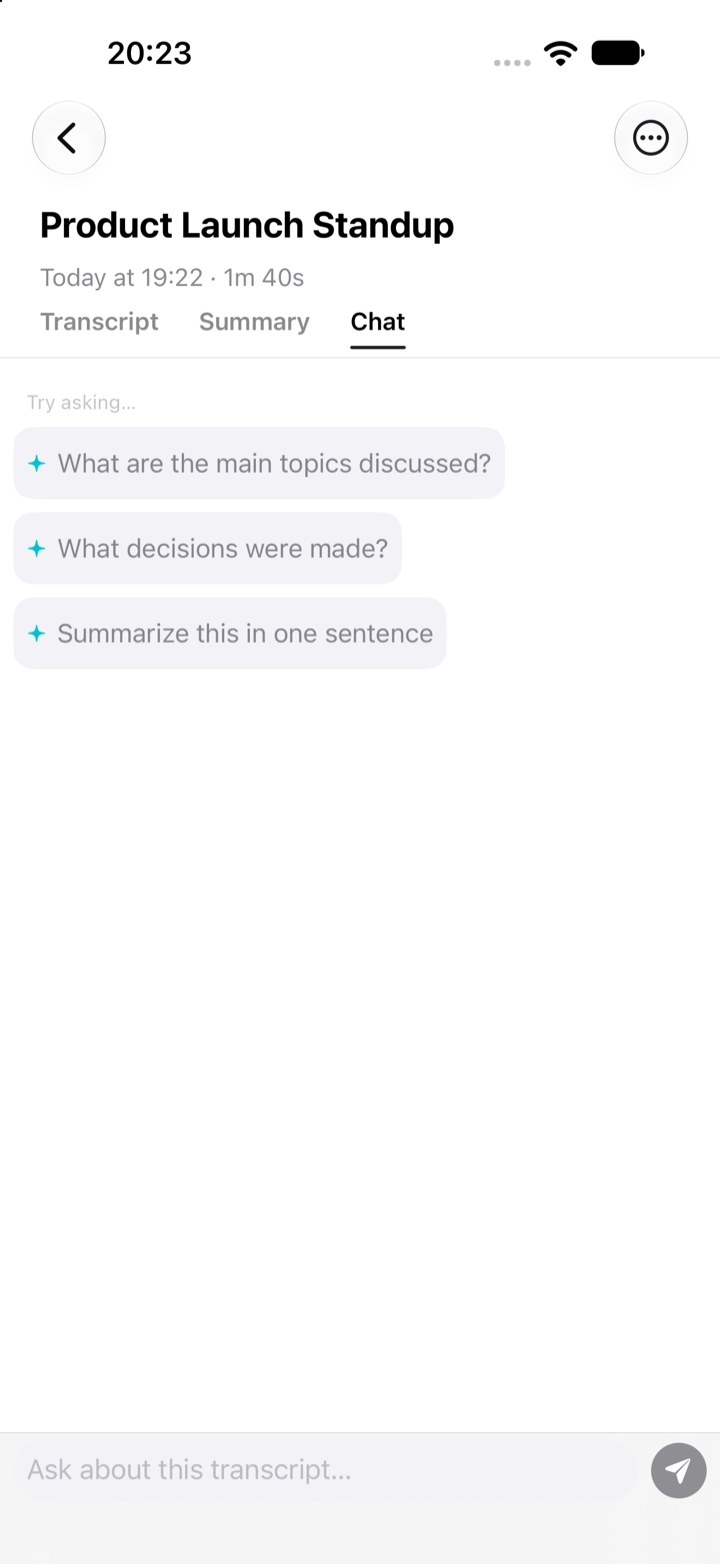
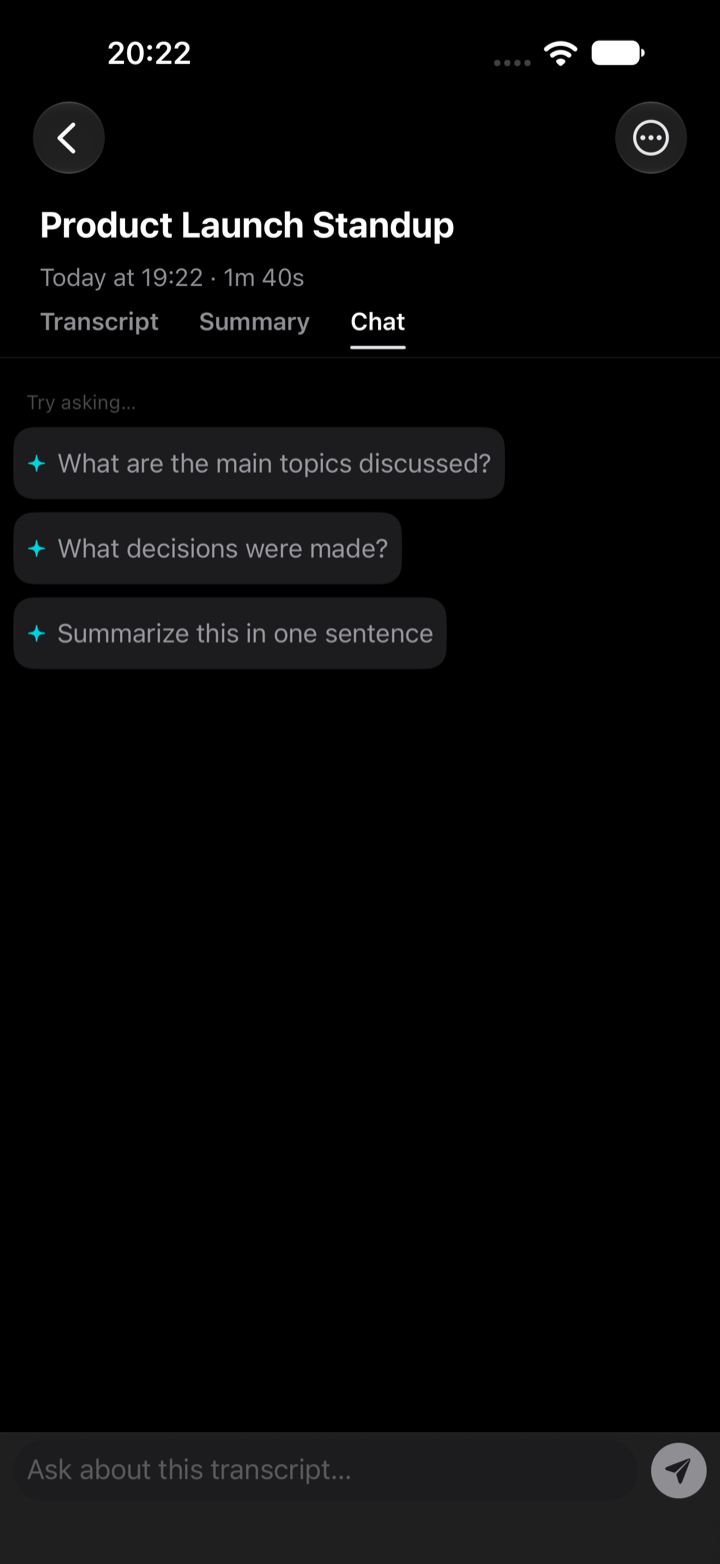
To ask questions about an audio recording, open it in ThinkScribe and go to its Chat tab. Type a question in plain words, such as "What did Maria say about the budget?", and ThinkScribe answers from that recording's transcript. For questions that span many recordings (a project, a course, a series of interviews), put them in a collection and use the collection's Chat.
It is the fastest way to get one fact out of an hour of audio without listening to it again. Your transcripts are never sent to us, and you choose which AI answers: Apple Intelligence, provided by Apple, or ThinkScribe AI, which runs on your device.
How to chat with a recording in ThinkScribe
- Record or import the audio, and wait for the transcript.
- Open the recording and tap the Chat tab (the tabs are Transcript · Summary · Chat).
- Tap one of the suggested questions, or type your own in Ask about this recording....
- Read the answer, then ask a follow-up to narrow it down.
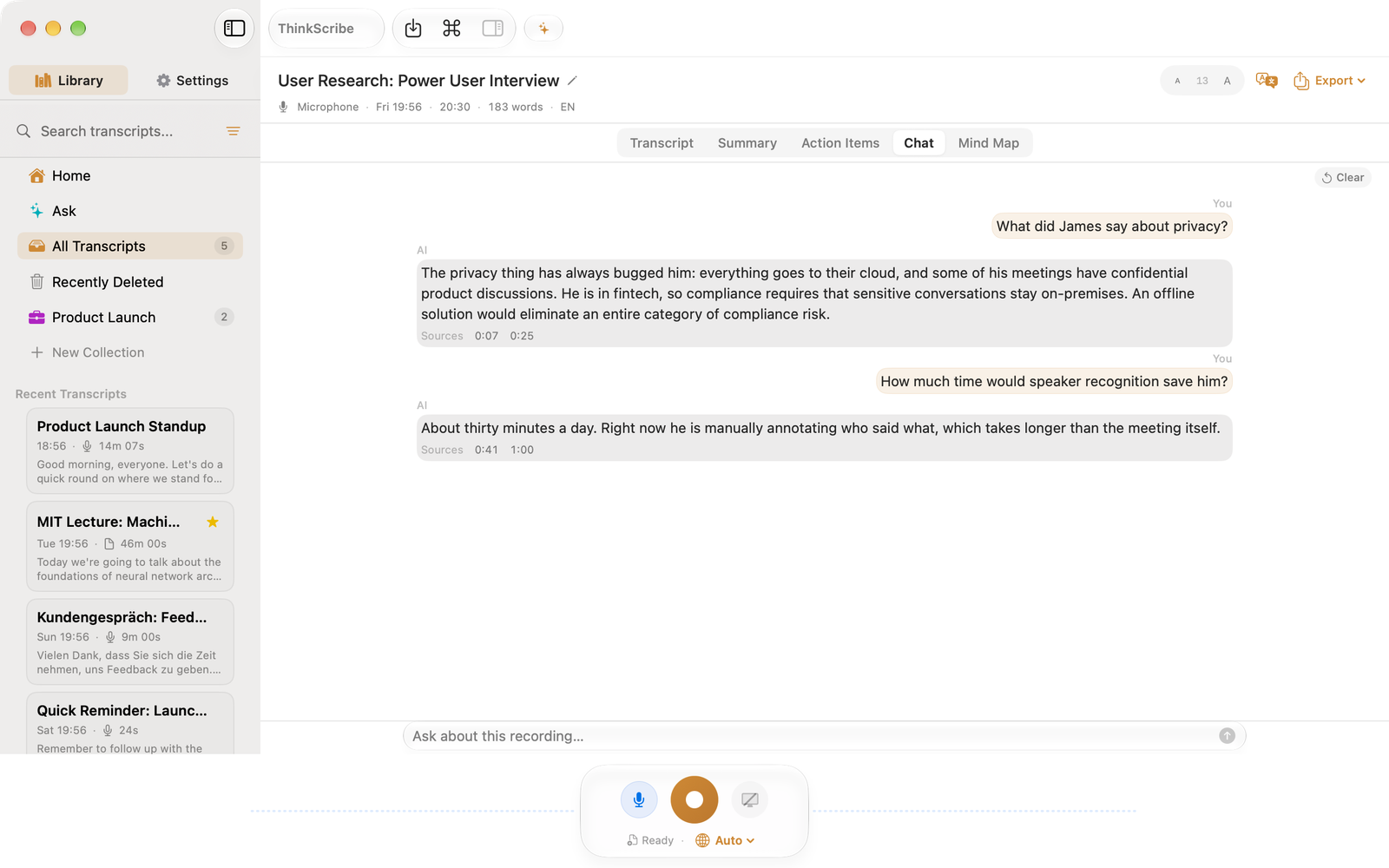
- On Mac, open the Chat tab in the workspace, or use View > Chat About This Recording (⌥⌘C). Click an answer's sources to jump to the moment in the transcript.
Start with the suggested questions
An empty Chat tab offers three questions that work on almost any recording:
- What are the main topics discussed?
- What decisions were made?
- Summarize this in one sentence
They are a good first move when you have not listened to the recording at all, for example a meeting a colleague recorded. The answer to the first one tells you what else is worth asking.
Good questions to ask, by situation
Chat works best with specific questions. "What happened?" gets you a summary; "What did we agree about the launch date, and who disagreed?" gets you the part you need.
After a meeting
- What did we decide about the budget, and what is still open?
- Who agreed to do what, and by when?
- What objections did the client raise?
- Was anything said about the deadline moving?
- Write a short follow-up email to the team based on this meeting.
After a lecture
- Explain the main argument in plain words.
- What examples did the lecturer use for this idea?
- What did the lecturer say would be on the exam?
- List the terms that were defined, with their definitions.
- Write five questions I could use to test myself on this.
After an interview
- What did the guest say about their first job?
- Give me the three strongest quotes on this topic.
- Where did the guest contradict themselves, if anywhere?
- What questions did I not follow up on?
For interviews you will quote from, always check the exact wording in the transcript before publishing. Interview transcription for journalists covers that workflow.
Where answers point to the moment
Knowing where an answer came from matters when you are going to act on it.
On Mac, Chat answers show sources you can click. Each source jumps to the moment in the transcript, so you can read the surrounding lines or play the audio.
On iPhone, Chat answers are plain text. To see where something was said, use the Summary tab: its bullets carry citations you can tap to jump to the transcript line, and where Mind Map is offered, its nodes link back to their source moment too. On an iPad or the inner display of iPhone Duo, Side by Side puts the transcript next to Chat, so you can read an answer and check the lines it came from without switching tabs. For a specific phrase from a Chat answer, tap the magnifier in the transcript and use Find in transcript, then tap the line to hear it.
Chat across many recordings
A single recording answers "what did we say today?". A collection answers "what have we said about this over the last month?".
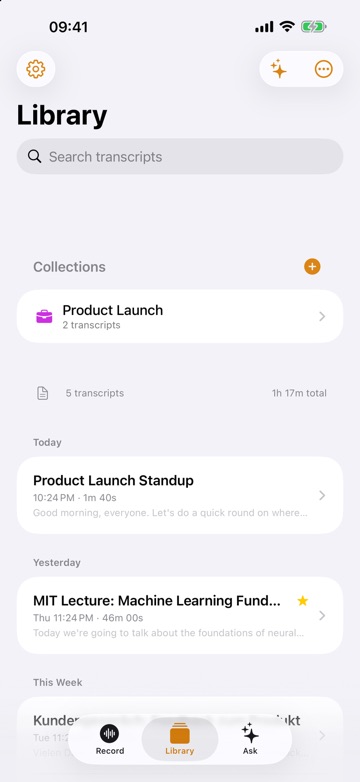
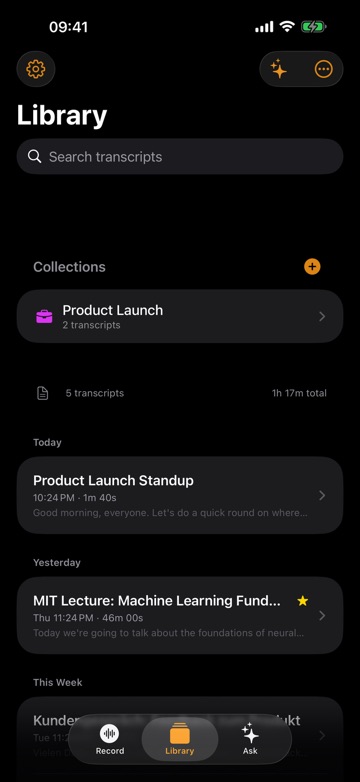
- In the Library, open Collections and choose Create a Collection.
- Add the recordings that belong together: every weekly meeting for a project, every lecture in a course, every interview for a story.
- Open the collection. It has four tabs: Transcripts, Timeline, Briefing and Chat.
- In Chat, ask questions across all of its recordings.
Good collection questions look for change over time or patterns: "When did the launch date first come up, and how did it change?", "Which topics came up in every interview?", "What did the lecturer say about this across the whole term?".
If you just need to find which recording mentions a word, the Library search is quicker than Chat: it reads the full text of every transcript and title. See search inside audio recordings.
Ask and Chat are different
ThinkScribe has two conversational features, and they do different things.
- Chat talks with your recordings: one recording from its Chat tab, or many from a collection.
- Ask is the general assistant (a tab on iPhone, "Ask" in the Mac sidebar). It helps with general questions and writing. It does not read your recordings.
If you want an answer about something that was said, use Chat. If you want help drafting a message from scratch, use Ask.
Choose which AI answers
In Settings > AI Assistant you can pick:
- Apple Intelligence, provided by Apple, on devices that support it.
- ThinkScribe AI, a one-time download that runs on your device.
Either way, your transcripts are never sent to us.
Chat, summaries and minutes work together
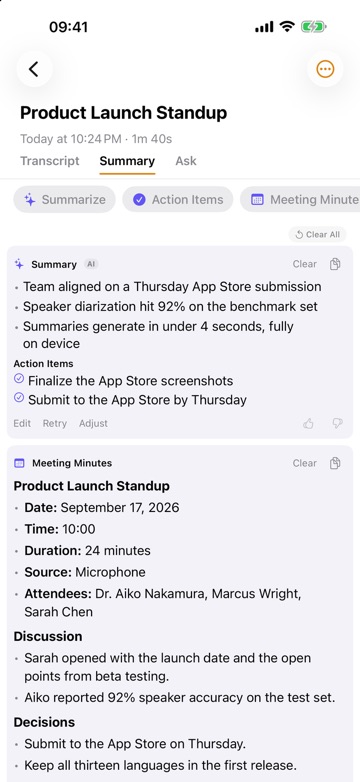
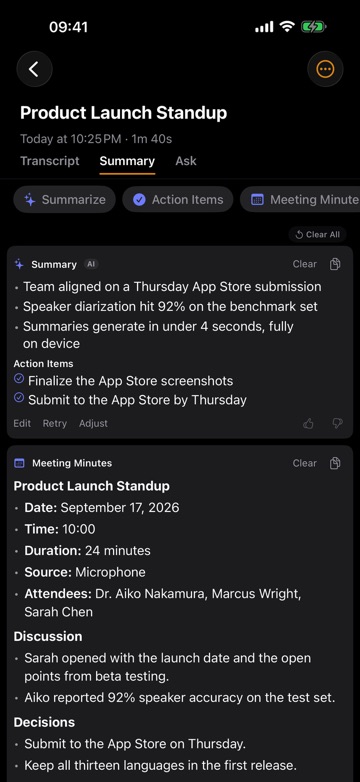
Chat is for questions you think of. The Summary tab is for the standard outputs: Summarize (with an Action Items list), Meeting Minutes and Executive Brief. A common routine after a meeting is to make the minutes first, then use Chat for the one detail the minutes left out. See meeting minutes and action items from a recording and on-device summaries, action items and answers.
Getting better answers
- Name the speakers first. "What did Speaker 2 say?" is harder to use than "What did Maria say?". Long-press a speaker badge and choose Rename Speaker....
- Ask one thing at a time. Two short questions beat one long one.
- Ask for a format. "As a bulleted list", "in two sentences", "as an email".
- Check anything you will act on. AI answers can be wrong. Jump to the moment (Mac sources, iPhone Summary citations or Find in transcript) before you quote or decide.
For the other things you can do with a transcript, see voice to text on iPhone, iPad and Mac: the complete guide or meeting transcription with ThinkScribe.
Frequently asked questions
Can I ask questions about an audio recording?
Yes. In ThinkScribe, open the recording and use its Chat tab. Type a question in plain words and the answer comes from that recording's transcript. To ask across many recordings, put them in a collection and use the collection's Chat.
How do I chat with a transcript on iPhone?
Open the transcript and tap the Chat tab next to Transcript and Summary. Tap a suggested question or type your own in "Ask about this recording...". Answers on iPhone are plain text; the Summary tab has citations that jump to the line.
Does the chat show where the answer came from?
On Mac, Chat answers show sources you click to jump to the moment. On iPhone, Chat answers are plain text, and the tappable citations are in the Summary results and, where Mind Map is offered, in its nodes. On an iPad or iPhone Duo, Side by Side shows the transcript next to Chat.
Is my recording sent anywhere when I chat with it?
Your transcripts are never sent to us. You choose Apple Intelligence, provided by Apple, or ThinkScribe AI, which runs on your device, in Settings > AI Assistant.
What is the difference between Ask and Chat?
Chat answers questions about your recordings, one at a time or across a collection. Ask is a general assistant for questions and writing help, and it does not read your recordings.