On-device meeting summaries, action items and answers
Turn a transcript into an on-device meeting summary, action items, minutes or a mind map, and ask questions that are answered with citations.
Once a recording is transcribed, the AI Assistant turns it into something you can act on: an on-device meeting summary, a list of action items, formal minutes, an executive brief, a mind map, or the answer to a specific question. All of it is generated by a language model running on your Mac or iPhone. The transcript never leaves the device, and every answer points to the lines it came from.
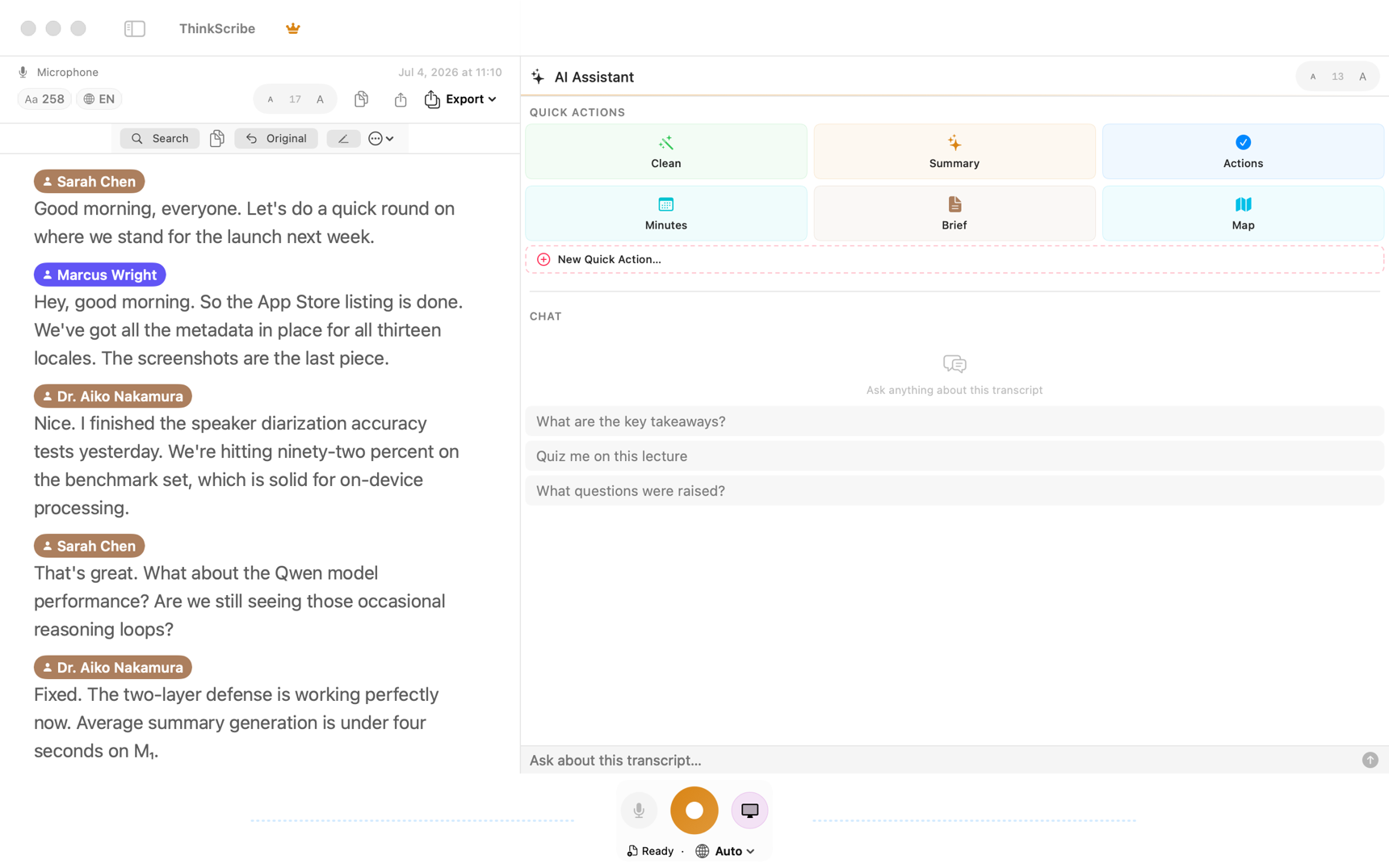
How to generate a meeting summary from a transcript
- Mac: select a transcript. The AI Assistant is the panel on the right of the window, with sections for Quick Actions, Results, Chat and Export.
- iPhone and iPad: open a transcript and tap the sparkles AI button. The AI Assistant sheet has the same sections.
If the ThinkScribe AI model is still downloading, the panel says so and the actions become available when it finishes. You can check under Settings > AI & Models on Mac, or Settings > AI Assistant on iPhone.
How to get action items and minutes out of a recording
The Quick Actions row offers six built-in actions:
- Clean Transcript: removes filler words and false starts while keeping every idea. Rule-based, instant, and always free.
- Summarize: a summary of what was discussed with the main points.
- Action Items: who agreed to do what, pulled out as a list.
- Meeting Minutes: a structured record with topics, decisions and next steps.
- Executive Brief: the short version for someone who was not in the room.
- Mind Map: the topics and how they relate, as a map you can explore.
Click one. Progress shows in the Results section, and the result is stored with the transcript, so it is there the next time you open it and it syncs with the transcript if sync is on.
Ask questions about a recording and get answers with citations
The Chat section is for questions the quick actions do not cover:
- Type a question, or pick a suggestion such as What are the key takeaways? or What questions were raised?
- The answer streams in, written from the transcript.
- Answers cite the lines they are based on. Click a citation to jump the audio and the transcript to that exact moment.
Ask follow-ups; the assistant keeps the context of the conversation. On iPhone, the AI Chat tab does the same across your whole library, so you can ask What did we decide about pricing last month? and get an answer drawn from several recordings.
Long recordings
A two-hour workshop is more than a small on-device model can read in one go, so ThinkScribe summarizes long transcripts in chunks and then combines the chunk summaries into one result. This happens automatically; you will notice only that a very long recording takes a little longer. Chapters, the topic segments shown in the transcript, are computed separately and make it easy to jump around a lecture.
What a language model on your own device does well
A model that runs on a laptop or a phone is smaller than the ones behind the large cloud assistants, and the gap shows up in predictable places rather than everywhere. It is strong at work that is mostly reading and reorganising: pulling the decisions out of an hour of talk, listing who agreed to do what, condensing forty minutes into six sentences, noticing where one topic ended and the next began. That work needs comprehension, and everything it needs is in front of it.
It is weaker wherever the job needs something the transcript does not contain. It cannot tell you whether a plan is a good one. It does not know your company's history unless somebody said it out loud. It will not reliably count things across a long document. And it can only hold so much text at once: one minute of conversational speech is roughly 150 words, so an hour of meeting is already a long document and a half-day workshop is a very long one. Past that limit the transcript has to be summarized in pieces and the pieces combined, which is why a detail dropped early does not reappear at the end. Summarizing transcripts locally on a Mac works through those trade-offs with a do-it-yourself setup.
How to ask for a summary that is actually useful
The instruction matters more than most people expect. Summarize this produces the beige paragraph nobody reads. Four things change the result:
- Name the audience. Notes for someone who missed the call are a different document from notes for the person who ran it.
- Ask for a shape. Say how many bullets, which sections, and in what order. Decisions, then owners, then open questions beats prose every time.
- Say what to leave out. Scheduling, small talk, the ten minutes about the broken projector.
- Ask it to admit gaps. Telling the model to say when the transcript does not cover something is the cheapest guard there is against a confident invention.
Save your own quick action (Mac)
If you keep typing the same instruction, make it a button:
- Click New Quick Action… at the end of the Quick Actions row.
- Give it a name, such as Blog Post or Client Email, and write the instruction, such as Rewrite this as a friendly follow-up email to the client with next steps.
- Click Save. It appears as a chip alongside the built-in actions, on every transcript.
Run Once tries an instruction without saving it. Edit and Delete are on the chip's menu.
Export the result
The Export section under the results has one-click buttons: Notes sends the summary or cleaned transcript straight to Apple Notes, and Word, PDF and TXT save a file. The export guide covers the transcript formats as well.
Language
The assistant writes in the language you use the app in. A meeting recorded in German with the app set to English produces English notes, with the transcript itself untouched. Change the app language in System Settings or the iOS Settings app to change the output language.
Frequently asked questions
Can AI summarize a meeting recording?
Yes, in two steps. The recording is first turned into a transcript, and then a language model reads that transcript and writes the summary. The quality of the second step depends almost entirely on the first: clear audio with speakers told apart gives notes you can rely on, while a muddy recording produces confident nonsense.
How do I get action items out of a meeting transcript?
Ask for them separately from the summary, and ask for a shape: one line per item, in the form owner, task, deadline if one was stated. A general summary buries commitments in prose, while a dedicated pass lists them. Then check each item against the moment it came from before you send it to anyone.
Can I summarize a transcript without sending it to a cloud service?
Yes. Models small enough to run on a laptop or a recent phone handle summaries and action items well, because that job is mostly reading and reorganising rather than world knowledge. ThinkScribe ships its own on-device language model and, on systems that support it, can use Apple's built-in on-device models, so there is no API key and no upload.
How accurate are the summaries?
Good for meetings, lectures and interviews with clear audio, and improving with every model update. The citations exist so you can check anything important in seconds rather than trusting a paragraph blindly.