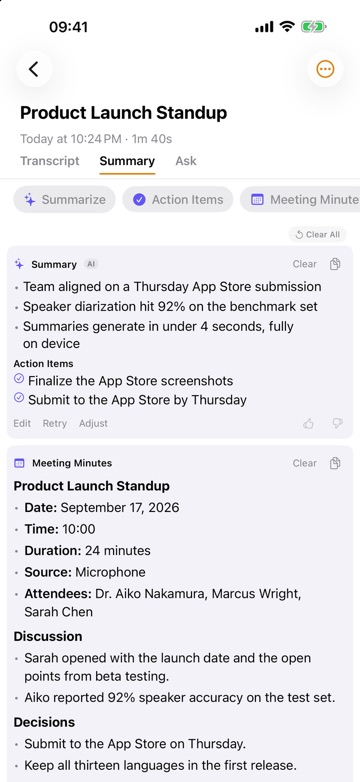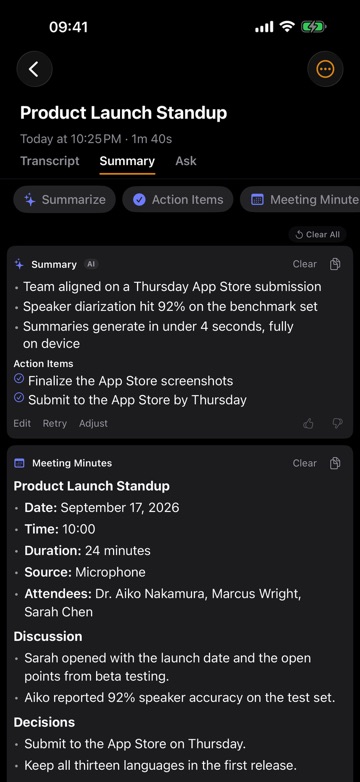
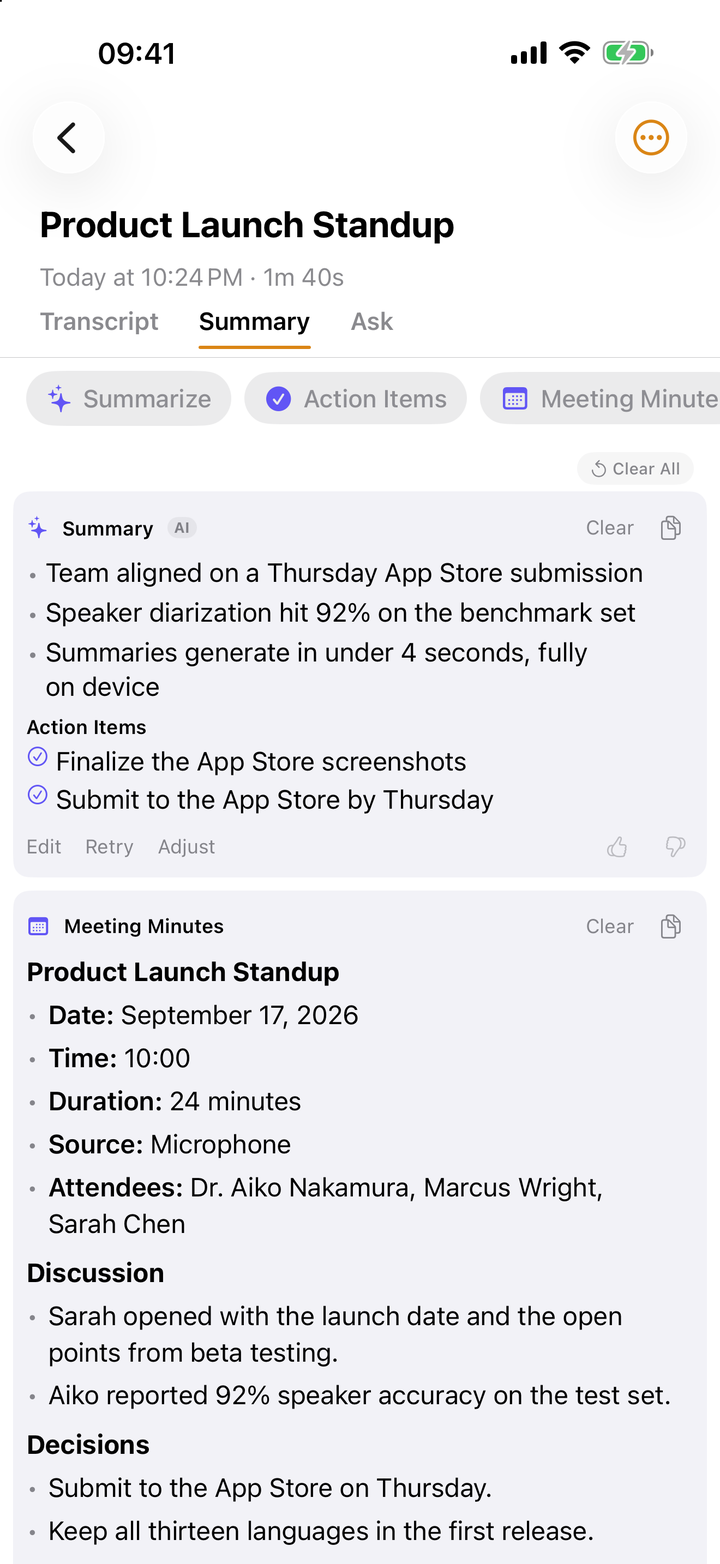
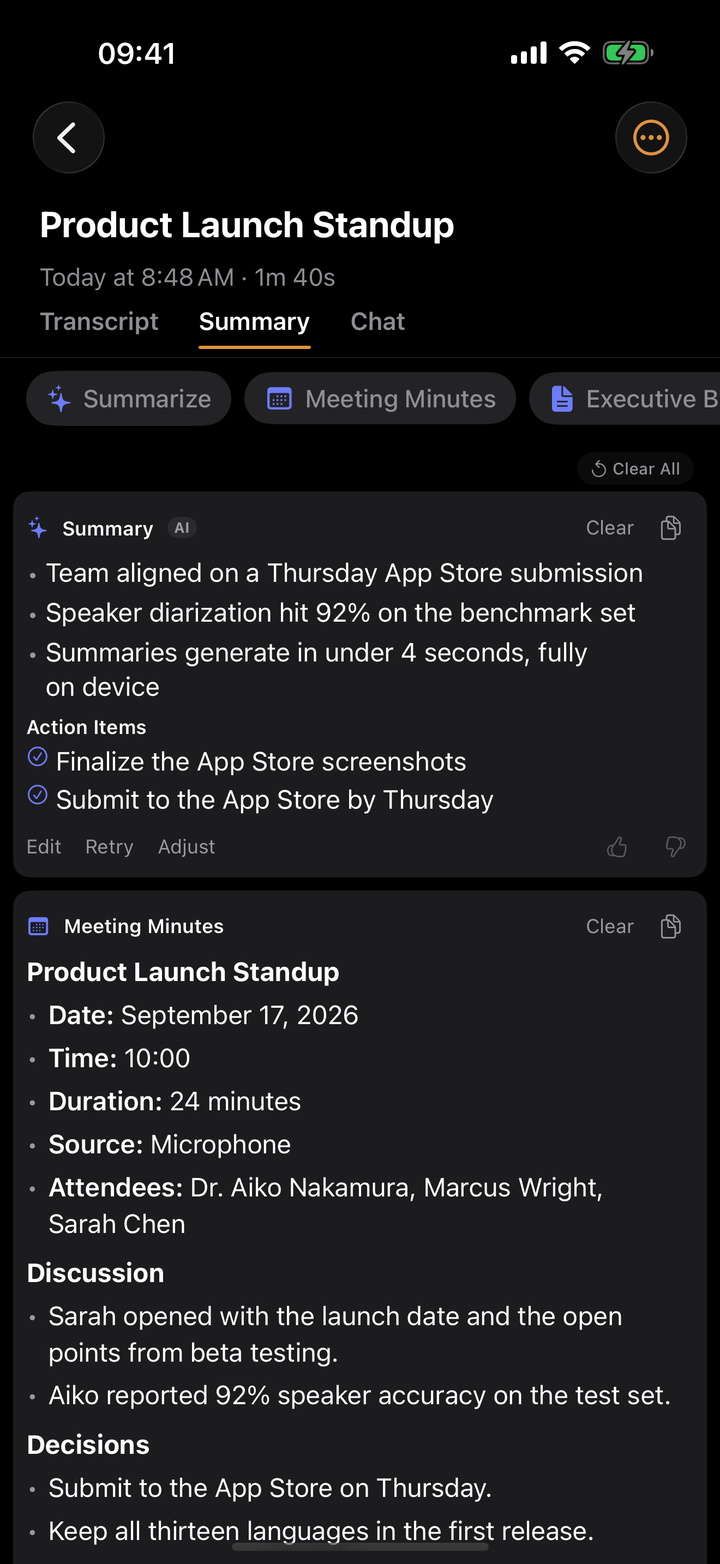
The quickest way to turn a lecture into a mind map is to let the recording do the work: record the lecture (or import the file), let ThinkScribe transcribe it, then open the Summary tab and tap Mind Map. You get the main topic in the middle, the big themes branching off it, and the details hanging from each theme. Every node links back to the moment in the recording it came from.
The same works for meetings. A mind map from meeting notes shows at a glance which subjects took up the hour and how they connect, something a page of minutes hides.
This article explains why a map helps, how to make one in ThinkScribe on iPhone, iPad and Mac, how to move it into your own notes, and where the approach reaches its limits.
Why a mind map beats a wall of transcript
A ninety-minute lecture produces somewhere around ten thousand words. Reading that back is slower than listening again. A summary shortens it, but a summary is still linear: point one, point two, point three. It does not show you that point five was really a sub-case of point two.
A mind map does. Three things make it useful for study and for work:
- Structure you can see. Themes become branches. When a lecturer spends twenty minutes on one idea and two minutes on another, the branches show it.
- Revision in one screen. Before an exam, you can look at the map, cover a branch, and try to recall what hangs from it. That is active recall with no extra preparation.
- A way back to the source. A node that says "Rational expectations" is only a label. Being able to jump from it to the minute where the lecturer explained it turns the map into an index of the recording.
How to make a mind map from a recording in ThinkScribe
- Record the lecture or meeting from the Record tab, or bring in an existing file with Import Audio File. Pick the spoken language on the language chip before you start.
- Tap Stop when it ends. ThinkScribe transcribes the recording on your device and separates the speakers.
- Open the transcript and switch to the Summary tab.
- Tap the Mind Map chip. On a Mac, open the Mind Map tab in the transcript workspace instead.
- Read the map. Use Show as Outline when you want the same content as an indented list, and Show as Map to go back to the canvas.
- To check a point, follow a node back to the source moment and listen to what was actually said.
- Keep it: Copy as Markdown for a notes app that understands headings and lists, Copy as Plain Text for anything else, or Share to send it on.
Map or outline: which view to use
The map and the outline hold the same content. They suit different moments.
The map is for getting the shape of a talk. Use it right after the lecture, when you want to know what the session covered and how the parts relate, and again before an exam when you want a one-screen overview.
The outline is for reading and writing. It is easier to scan on a phone held upright, and it is the better starting point when you plan to paste the result into a document, because it reads top to bottom like notes.
Using a mind map for lectures
Lectures are where mind maps earn their keep. A few ways students use them:
- Weekly review. After each session, make the map and paste it as Markdown into the notes for that course. By the end of term you have one map per lecture, all in the same format.
- Gap finding. If a branch looks thin compared with how long the lecturer spent on it, follow its node back to the moment and listen. Thin branches often mean a dense explanation that deserves its own notes.
For the whole process, from asking permission to record through to exam revision, see how to record a lecture and turn it into study notes.
Using a mind map for meetings and brainstorming
In meetings, a map shows the topics, not the decisions. That is its strength and its limit.
After a brainstorming session, the map groups ideas that people raised at different times. Ten minutes of scattered suggestions about pricing end up on one branch, even if they came up at the start, the middle and the end.
For a planning meeting, pair the map with the written results in the same tab. Meeting Minutes records what was discussed and decided, the summary includes an Action Items list, and the map shows how the topics fit together. Our guide to meeting minutes and action items from a recording covers the written side.
Using a mind map for book-length talks
Long recordings, such as a half-day workshop or a long podcast interview, are hard to review in any linear form. A map shows which parts are worth your time again: find the branch you care about, follow its node to the moment, and listen from there instead of scrubbing through hours of audio.
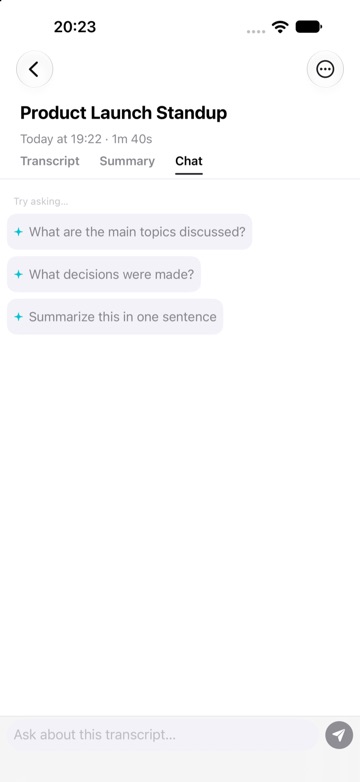
If you still cannot find what you need, ask the recording directly. The Chat tab answers questions about one recording, which is often faster than scanning a large map. See chat with a recording.
Getting a better map
The map is built from the transcript, so a better transcript gives a better map.
- Record clean audio. Sit close to the speaker, keep the phone still, and start recording before the first sentence. The opening minute often states what the session is about, which becomes the centre of the map.
- Set the right language. Choose the spoken language on the language chip before recording, or use Auto-detect when it is offered.
- Teach it names and terms. Add course names, people, product names and jargon to the Custom Dictionary (iPhone: Settings > Advanced; Mac: Settings > Vocabulary). Correctly spelled terms become correctly labeled nodes.
- Name the speakers in a meeting first. It makes the transcript easier to check when you follow a node back to its moment.
Honest limits
A mind map made from a recording is a strong first draft, not a finished study aid.
- It shows the structure the AI reads in the transcript. A lecturer who wanders between topics can produce a map that groups things differently from how you would. Treat it as a starting point and rework it in your notes.
- It works from words. Anything only on the slides or whiteboard is missing unless someone said it.
- Mind Map is not on every iPhone, as noted above. If yours does not show it, a Mac with the same transcript (through optional iCloud sync) can make the map.
- It does not replace listening to the hard parts. Use the node links to get to those moments quickly, then listen.
For more on turning speech into text across all your devices, start with the complete voice to text guide, or see how ThinkScribe handles lecture transcription.
Frequently asked questions
How do I turn a lecture into a mind map?
Record the lecture in ThinkScribe or import the audio file, wait for the transcript, then open the Summary tab and tap Mind Map. On a Mac, open the Mind Map tab of the transcript. The map shows the main topic, its themes and the details under each, and each node links back to the moment it came from.
Can I make a mind map from meeting notes?
Yes, if you have the meeting recording. Record or import it in ThinkScribe, then tap Mind Map in the Summary tab. For the written record of decisions, use Meeting Minutes and the Action Items list in the same tab, and keep the map for an overview of the topics.
Can I export the mind map to my notes app?
Yes. Use Copy as Markdown to paste it with headings and lists into a notes app that supports Markdown, or Copy as Plain Text for any other app. You can also use Share to send it to another app or person.
Why can't I see the Mind Map chip on my iPhone?
Mind Map needs an iPhone or iPad with 8 GB of memory (iPhone 15 Pro and later models with 8 GB or more), so it is hidden on devices with less. The other chips in the Summary tab are still there. If you also use ThinkScribe on a Mac, the Mind Map tab there works on the same transcript.
Are my recordings sent anywhere to make the map?
ThinkScribe needs no account, and your recordings and transcripts are never sent to us. Transcription happens on your device. In Settings > AI Assistant you choose Apple Intelligence (provided by Apple) or ThinkScribe AI, a one-time download that runs on your device.