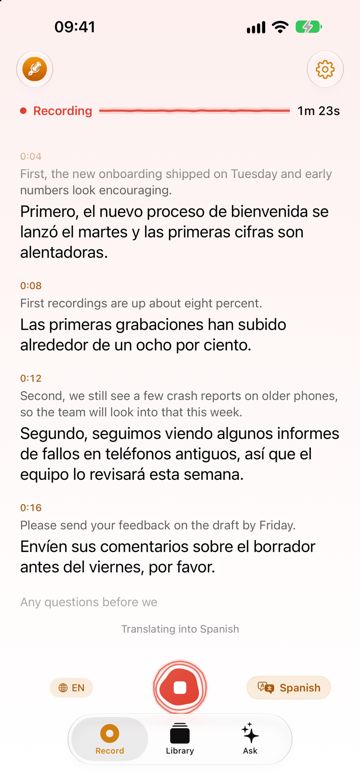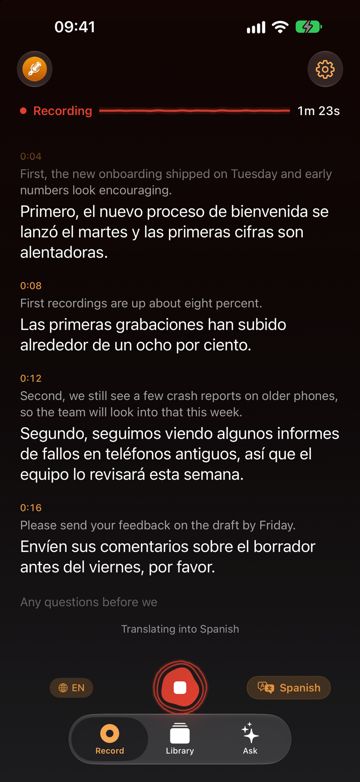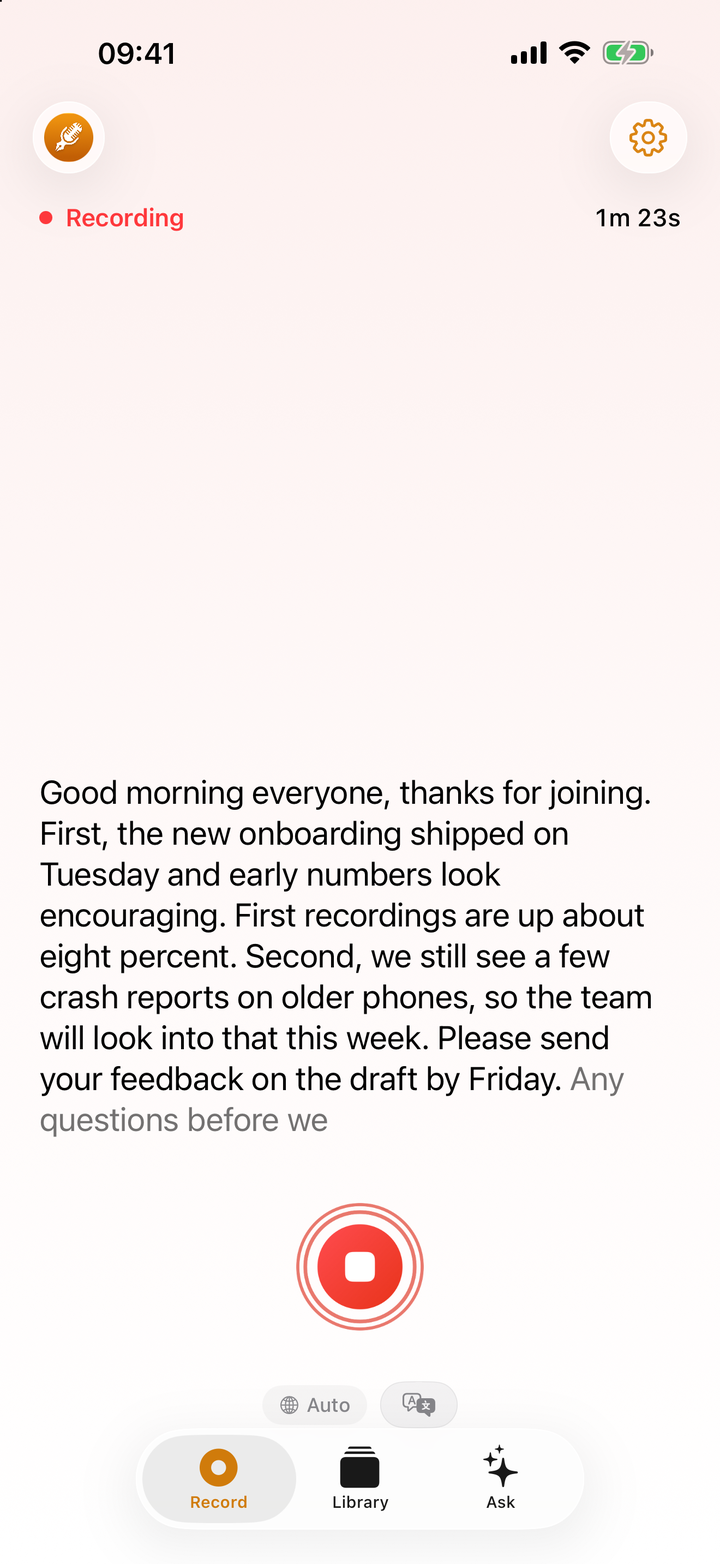
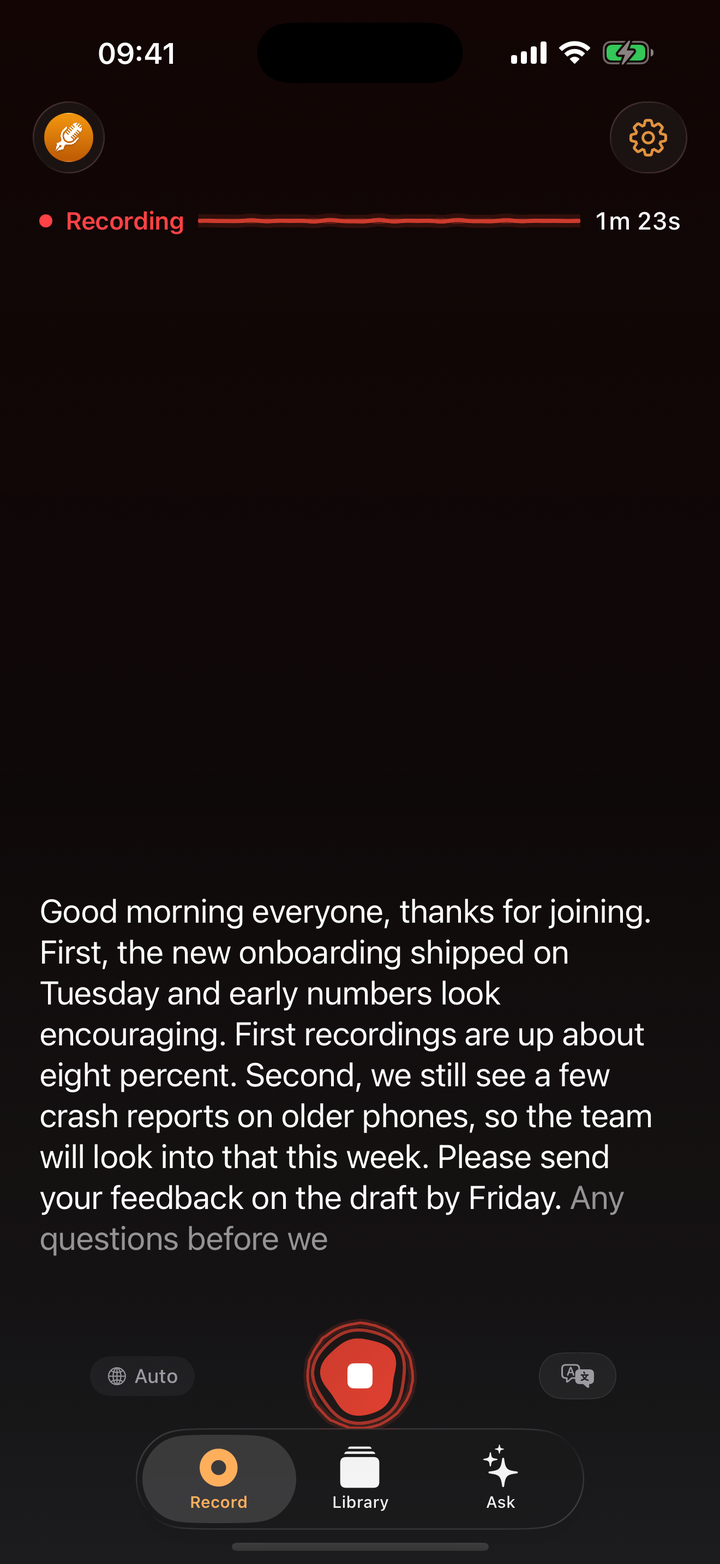
For live transcription on iPhone, open ThinkScribe and tap record. Live Text is on by default, so the words appear on screen a moment after they are spoken, and they keep coming for as long as you record. When you tap Stop, you also get a full transcript with speakers that you can search, summarize and export.
That combination is the point. Real-time speech to text helps you follow a conversation now; the saved transcript helps you later. Both are made on your iPhone and work offline, with no account, and your recordings and transcripts are never sent to us. Live text covers most of ThinkScribe's languages; a few are not covered yet, and some need a short download the first time. Either way, the full transcript is made when you stop.
This article explains what you see, the options that come with it, and how live text relates to the final transcript.
How to start live transcription in ThinkScribe
- Open ThinkScribe on the Record tab.
- Tap the language chip next to the record button and choose the language that will be spoken.
- Look at the chip beside it. A translate icon means live text is on, which it is unless you turned it off; the chip reads Live Text Off when it is off.
- Tap the record button and hold or place the iPhone where it can hear the speaker and you can read the screen.
- Tap Stop when you are done. ThinkScribe then makes the final transcript and separates the speakers.
What you see while recording
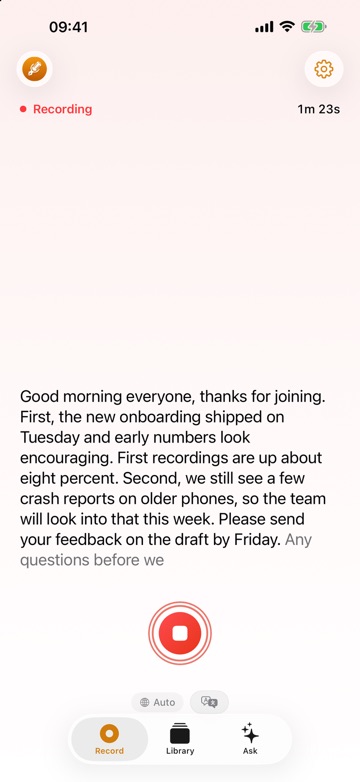
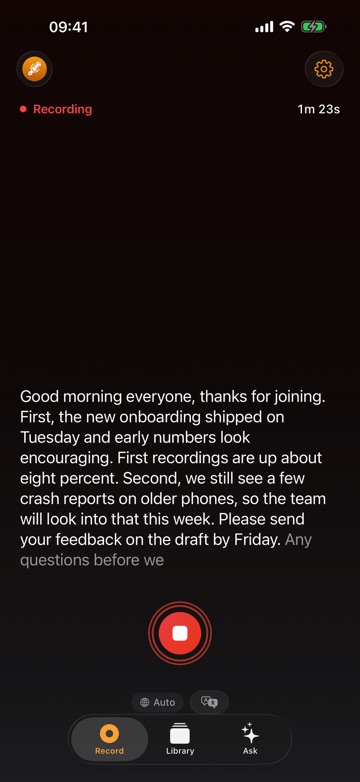
The recording screen shows the words as they are recognized, so you can glance at it to catch a sentence you missed or check a name or number that was just said.
Live text is a working view, not the finished product. It shows you what is being said so you can keep up. The version you keep is made when you stop, and it can differ in places: a word corrected here, a sentence break there, and speakers separated.
Turning live text on or off
Tap the translate icon next to the language chip, and use Show Live Text in the sheet that opens. The same setting is in Settings > Live Text.
Turning it off never changes the recording or the final transcript. As the app puts it: "Your transcript is made when you stop, either way." Some people turn it off in meetings so the screen does not distract them, and keep it on for lectures where they want to follow along.
Notice My Name
Notice My Name marks your name in the live text when someone says it. In a long meeting where you are half-listening, or in a lecture hall where the lecturer may call on you, it makes the moment someone addresses you easy to spot on screen.
A live translation line
In the same sheet, under Translate Live, pick a language to add a line with the translation of what is being said. It uses Apple's Translation, provided by Apple, and some languages need a one-time download from Apple before you can use them.
This helps when you are following a talk in a language you read better than you hear, or a conversation where you know one side better than the other. After the recording, you can translate the whole transcript too; see translate a transcript.
What happens when you leave the app
The recording keeps going when you switch apps or lock your iPhone. The Lock Screen and the Dynamic Island show it with a Stop button, and inside ThinkScribe it stays visible at the bottom of the screen. Live text pauses while the app is in the background. Nothing is lost: the final transcript is made from the whole recording, including the part you were not watching.
If you want to read along the whole time, keep ThinkScribe on screen.
Why the final transcript is made after you stop
When you tap Stop, you will see "Transcribing...", then "Identifying speakers...". There are good reasons for this second pass.
- More context means better accuracy. Live recognition has to commit to words as they arrive. The final pass hears the whole recording, so it can settle on the right word from what comes after it.
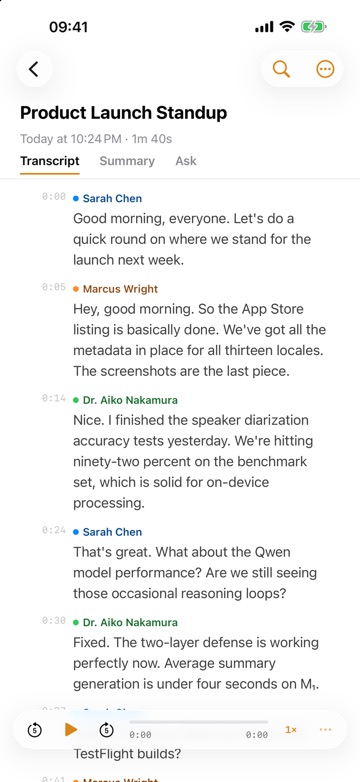
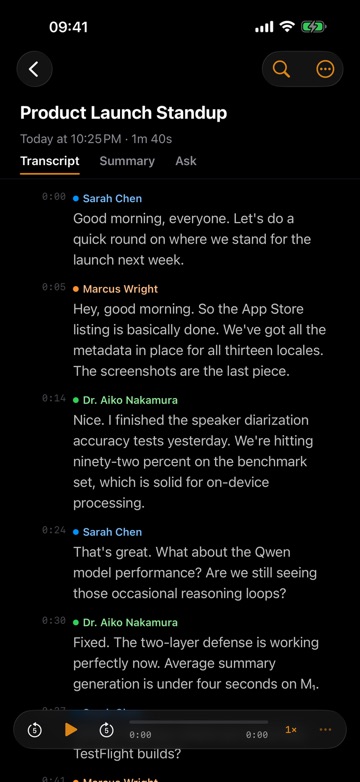
- Speakers are separated. The final transcript labels each voice as Speaker 1, Speaker 2 and so on, and puts names on voices you have saved before.
- Cleaner text. The transcript shows cleaned text by default, with hesitations and fillers removed. Show Original in the ... menu brings back the raw words.
Sometimes there is a third step. If the first transcript had to be made with the quicker engine, ThinkScribe makes it again with the better one when that is ready: you see "Improving transcript..." and then "Transcript improved". If no words are found, Try Another Language runs it again in the language you pick.
Live speaker labels: only on some devices
Showing who is speaking while you record takes more memory than showing the words. Live speaker labels are available on iPhones and iPads with 8 GB of memory and on Mac, and they are off by default. On other devices, live text shows the words only, and the final transcript still separates the speakers after you stop.
When live transcription helps most
Lectures. Follow the lecturer on screen, glance back at a term you missed, and leave with a transcript you can revise from. Afterwards, the Summary tab turns it into a summary with action items or a mind map.
If you are hard of hearing. Put the iPhone on the table facing the person you are talking with, and read along when you miss something. It is useful at a doctor's appointment, a parent evening or a bank meeting, where the details matter. Live captions and transcripts as an accessibility tool goes deeper into what helps and where live text falls short.
Meetings. Glance at the live text to check what was just decided while you take part, then name the speakers and make minutes afterwards. See record an in-person meeting on iPhone.
Talks in another language. Combine live text with Translate Live to follow along, then read the full translated transcript later.
On an iPad or the inner display of iPhone Duo there is more room for the live text, and afterwards the Library stays beside the open transcript.
Always follow local law and get consent before recording other people.
Honest limits
- Distance matters. A phone far from the speaker, or in a room with echo, gives weaker live text. Move closer when you can.
- Overlapping voices are hard to transcribe live. The final transcript separates speakers better.
- Live text runs a moment behind the speaker. It is fine for following along, but it is not a replacement for a professional captioner where one is required.
For the other ways to turn speech into text, including voice typing and importing files, see voice to text on iPhone, iPad and Mac: the complete guide, or read more about live captions with ThinkScribe.
Frequently asked questions
Can my iPhone transcribe speech in real time?
Yes. In ThinkScribe, Live Text is on by default: tap record and the words appear on screen as they are spoken. When you stop, ThinkScribe makes a full transcript you can keep, search and export.
Does live transcription work offline?
Yes. Live text and the final transcript are made on your iPhone and work offline. For some languages live text needs a short download first, and a few are not covered yet; the final transcript is made either way. The live translation line uses Apple's Translation, provided by Apple, and some languages need a one-time download first.
Why does the final transcript differ from the live text?
The final transcript is made from the whole recording after you stop, so it has more context to choose the right words, and it separates the speakers. Live text is a quick working view for following along.
Does live text keep going when I lock my iPhone?
The recording keeps going, but live text pauses while ThinkScribe is in the background. The final transcript covers the whole recording, including the time the app was not on screen.
Does live transcription show who is speaking?
Live speaker labels are available on iPhones and iPads with 8 GB of memory and on Mac, off by default. On every device, the final transcript separates the speakers after you stop.