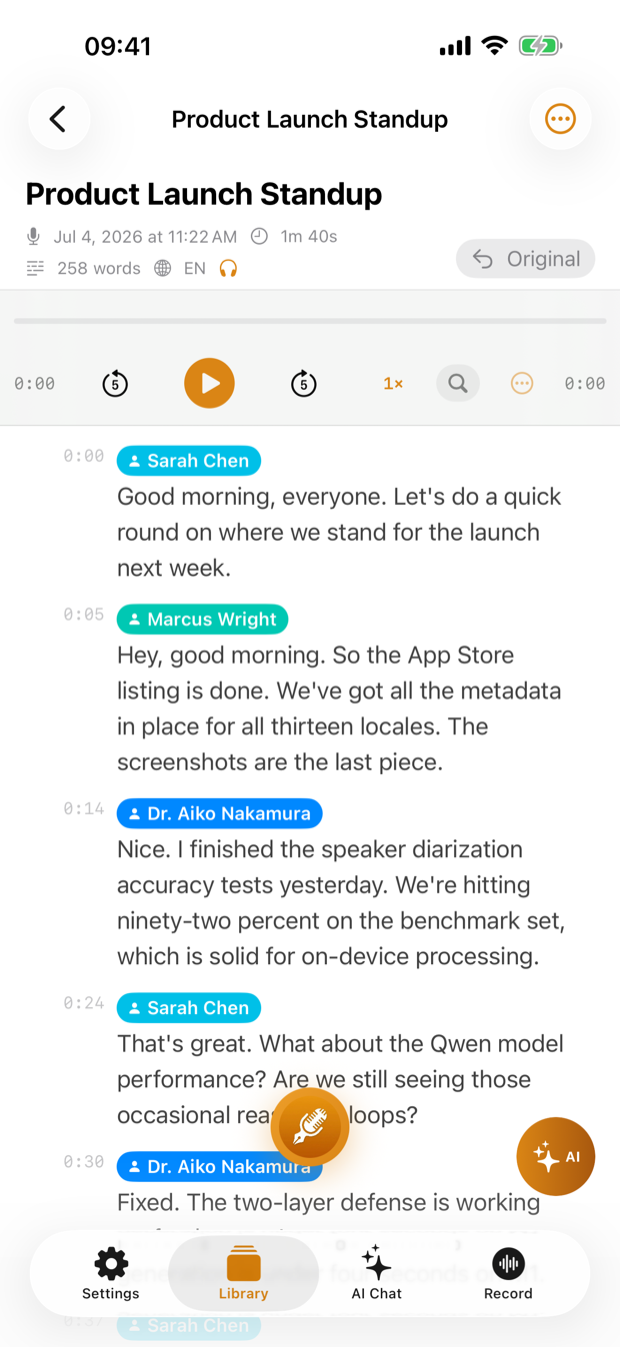
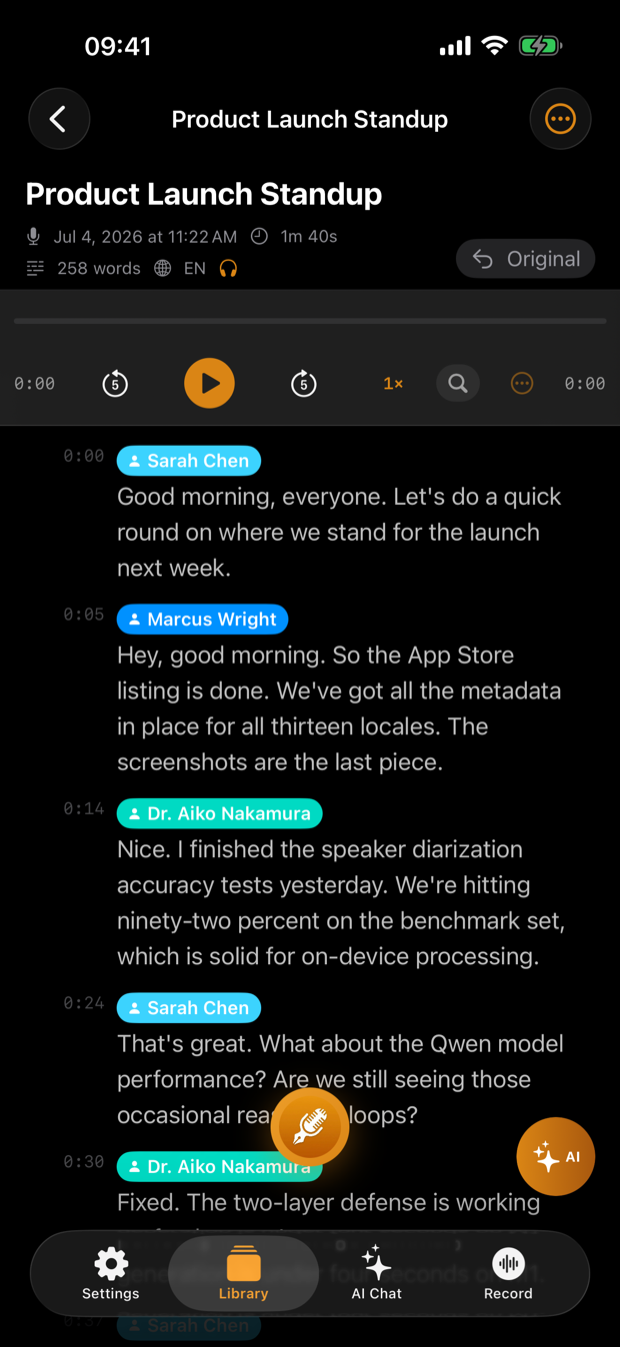
To record a meeting on iPhone and transcribe it, open ThinkScribe, check the language chip, place the phone in the middle of the table and tap the record button. Words appear on screen as people speak. When the meeting ends, tap Stop: ThinkScribe makes the full transcript, separates the speakers, and gives you a summary, action items and meeting minutes from the Summary tab.
This guide is for meetings in a room: a team stand-up, a client visit, a board meeting, a parent-teacher conference. For calls on Zoom, Teams or Meet, a Mac can capture the call audio directly; see recording a Zoom, Teams or Meet call on Mac.
Before the meeting: place the phone well
The transcript is only as good as the audio, and in a meeting room the phone's position matters more than anything else.
- Put it in the middle. The phone should be roughly the same distance from everyone. A phone next to you records you loudly and the far end of the table faintly.
- Screen up, microphones clear. Lay it flat on the table, not in a pocket or under a notebook. Keep it away from laptops with loud fans, coffee cups and the projector.
- Put something soft underneath. A table picks up taps, pens and cups set down. A folded napkin or a notebook under the phone reduces those knocks.
- For a long table, use two devices. Put the iPhone at one end and record with your Apple Watch or a second phone at the other as a backup.
- Silence interruptions. Turn on Do Not Disturb or a Focus so notifications and calls do not disturb the meeting.
How to record a meeting on iPhone in ThinkScribe
- Open ThinkScribe on the Record tab. Tap the language chip and pick the language the meeting will be held in.
- Tap the big record button. You can also start with the Record control in Control Center, on the Lock Screen or on the Action button, with the Quick Record widget, or by saying "Start a ThinkScribe recording" to Siri.
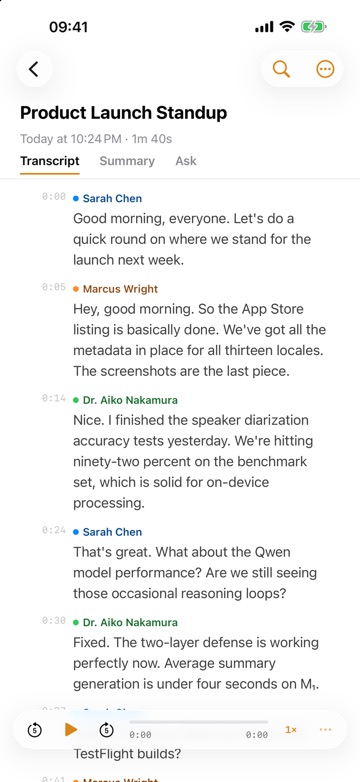
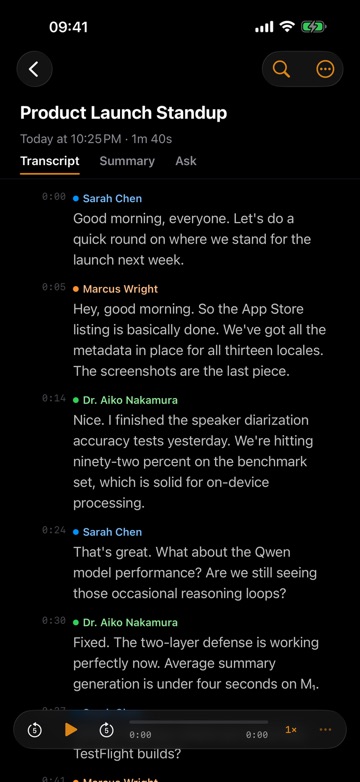
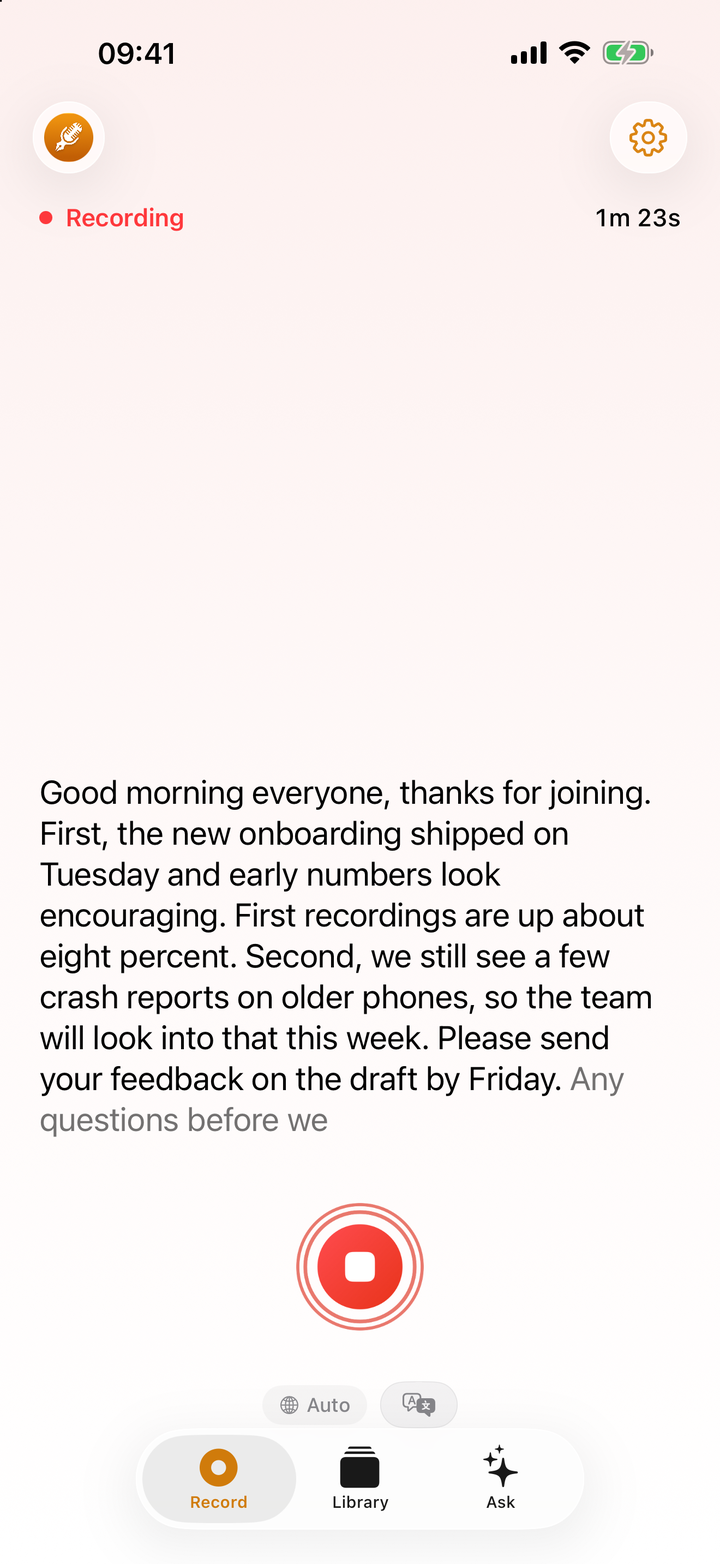
- Put the phone down in its spot. With Live Text on (the default), you can glance at the screen and see words appear as people speak.
- Use your phone normally if you need to. The recording stays visible at the bottom of the screen while you browse ThinkScribe, and it continues if you switch to another app or lock the phone. The Lock Screen and the Dynamic Island show it with a Stop button.
- When the meeting ends, tap Stop. ThinkScribe shows "Transcribing...", then "Identifying speakers...".
- When it is done, the Record tab shows "Transcript ready" with the number of speakers. Tap Open.
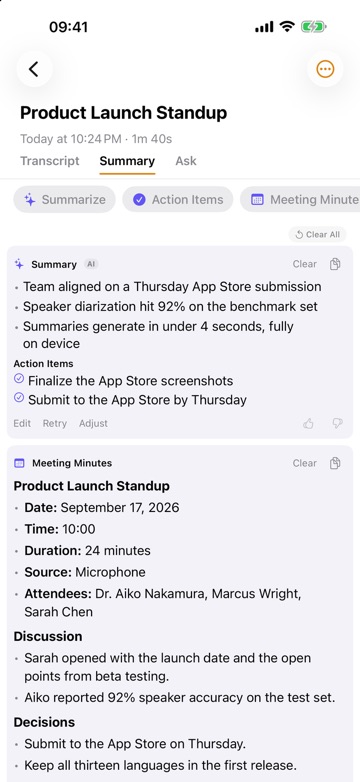
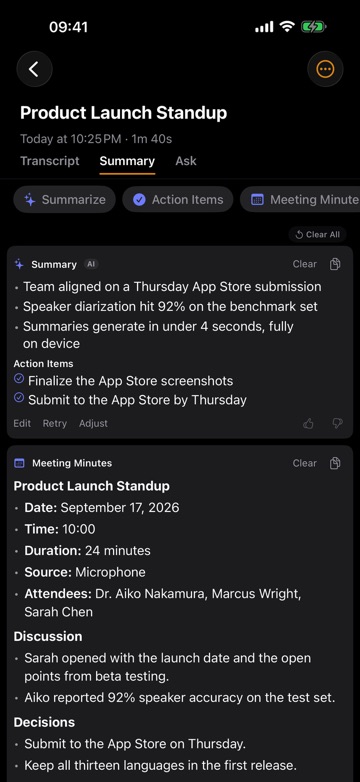
- Name the speakers, then open the Summary tab for the summary, action items and meeting minutes (see below).
Use your Apple Watch as a backup
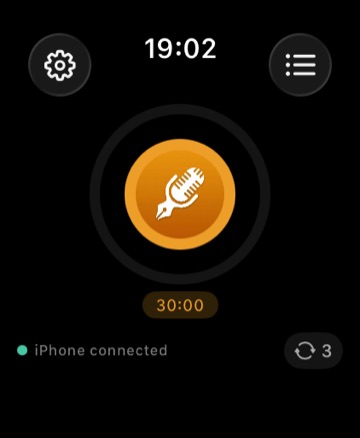
If you have an Apple Watch, you can start a second recording from the ThinkScribe Watch app or its complication. The audio is sent to your iPhone and transcribed there. The Watch has a maximum length setting between 5 and 60 minutes (30 by default), so raise it before a long meeting. See the Apple Watch recording guide.
During the meeting
Live text is there to reassure you, not to replace the final transcript. You can check that the recording is picking up the far end of the table and move the phone if it is not.
A few things to know:
- Live text pauses in the background. If you switch to another app, the live text stops updating but the recording continues. The final transcript is made from the whole recording when you stop.
- Turning off live text changes nothing in the transcript. If the moving text distracts you, tap the translate icon next to the language chip and turn off Show Live Text. "Your transcript is made when you stop, either way."
- Notice My Name. With this live text option, ThinkScribe marks your name in the live text when someone says it, which helps if you are half-listening while taking notes.
After the meeting: speakers, summary and minutes
Name the speakers
ThinkScribe separates voices automatically and labels them Speaker 1, Speaker 2 and so on. To name one, long-press the speaker badge in the transcript and choose Rename Speaker.... Every line with that label updates, and you can pick from Known Speakers or type a new name.
Named voices are recognized automatically in new recordings, so the weekly team meeting comes out labeled after the first time. The speaker identification guide covers enrolling a colleague ahead of time and fixing wrong labels.
Get the summary and meeting minutes
Open the Summary tab. If Summarize New Recordings is on (it is by default for Pro), the summary is made as soon as the transcript is ready. Otherwise, tap Summarize. Other chips give you Meeting Minutes and Executive Brief. On an iPad or the inner display of iPhone Duo, Side by Side puts the transcript next to the summary.
The summary includes an Action Items list. Summary bullets have citations: tap one to jump to the transcript line it came from and check the exact wording. Each result has Adjust (Shorter, More detail, Simpler words, More formal), Edit and Retry. For the details, read meeting minutes and action items from a recording.
Share it
From the transcript's "..." menu, choose Export for TXT, SRT, VTT, JSON, Markdown or PDF, or Copy Text and Share Text to paste it into an email or chat. PDF works well for minutes you send to people outside the team.
Tips for long meetings
- Charge first, or plug in. A two-hour workshop on a phone at 30 percent is a risk. If there is a socket near the middle of the table, use it.
- Low Power Mode. Recording works in Low Power Mode, but live text is paused and the automatic summary waits. Both come back when Low Power Mode is off, or tap Summarize in the Summary tab.
- Leave space. Long audio takes storage. Check that your iPhone is not nearly full before a full-day session.
- Keep ThinkScribe on screen when you can. It keeps the live text updating, which is the easiest way to spot a problem early.
- Stop at breaks if you like. Separate recordings for morning and afternoon sessions are easier to name, summarize and share than one long file. Put them in a Collection to keep them together.
Why record meetings this way
ThinkScribe needs no account. Your recordings and transcripts are never sent to us. Transcription and speaker labels happen on your device and work offline, which also means a meeting in a basement room with no signal transcribes just as well. No meeting bot joins anything: it is your phone on the table.
For more on turning speech into text across iPhone, iPad and Mac, see the complete voice to text guide, or how ThinkScribe handles meeting transcription.
Frequently asked questions
How do I record a meeting on iPhone and transcribe it?
Open ThinkScribe, set the language chip to the meeting's language, put the phone in the middle of the table and tap record. Tap Stop when the meeting ends. ThinkScribe transcribes the recording on your device, separates the speakers, and offers a summary, action items and meeting minutes in the Summary tab.
Where should I put my iPhone to record a meeting?
In the middle of the table, screen up, roughly the same distance from everyone, away from laptop fans and cups. A soft surface underneath reduces table knocks. For a long table, record a second copy with an Apple Watch or another device at the other end.
Can the transcript show who said what?
Yes. ThinkScribe separates speakers automatically and labels them Speaker 1, Speaker 2 and so on. Long-press a speaker badge and choose Rename Speaker... to name them. Named voices are recognized automatically in later recordings.
Does recording continue if I lock my iPhone or switch apps?
Yes. The recording continues in the background, and the Lock Screen shows it with a Stop button. If you stop it there, the transcript is made when you open ThinkScribe again. Live text pauses while the app is in the background, but the final transcript is made from the full recording when you stop.
Do I need permission to record a meeting?
Recording laws differ by country and state, and many organizations have their own rules. Tell everyone at the start of the meeting and get their consent. It also helps the transcript: people speak more clearly when they know it is being written down.