Transcribe an audio or video file on Mac, iPhone and iPad
How to transcribe an audio or video file on Mac, iPhone or iPad: importing, drag and drop, the share sheet, batch imports, language and engine.
You do not have to record inside ThinkScribe to use it. To transcribe an audio or video file on Mac, iPhone and iPad, you import one you already have, a voice memo, a downloaded lecture, a podcast episode, a phone interview, a screen recording, and it is transcribed on the device with the same speaker identification and AI tools as a live recording. This guide covers every way to get a file in.
Which audio and video file formats can be transcribed
MP3, M4A, AAC, WAV, AIFF, FLAC, CAF, OGG and Opus audio, and MP4 and MOV video. Video files have their audio track extracted for transcription; the video itself is not stored, and transcribing a video to text covers that case end to end, including exporting captions back onto the video. Very long files are fine; a four-hour recording is processed in chunks so the app stays responsive.
Container and codec names, and what each one is for
Audio file names are confusing because two different things share the same slot. The extension usually names the container, the box that holds the audio and its timing information, while the codec is the method used to pack the sound inside that box. Two files ending in .mp4 can hold different codecs, and the same codec can turn up in several containers. Here is what the common names mean in practice.
| Name | What it is | Where it usually comes from |
|---|---|---|
| MP3 | Lossy audio, the oldest format still in daily use | Podcast downloads, dictation recorders, files shared on the web |
| M4A | A container holding AAC audio | Phone voice memos and most built-in recorder apps |
| AAC | The lossy codec inside M4A and most video files | Phone recordings, video soundtracks, streaming |
| WAV | Uncompressed audio, large but exact | Field and studio recorders, editing masters |
| AIFF | Uncompressed audio, the Apple equivalent of WAV | Recording and editing on a Mac |
| FLAC | Compressed without losing anything | Archive copies and music libraries kept at full quality |
| CAF | An Apple container designed for very long recordings | Long recordings produced on Apple platforms |
| OGG | An open container, usually holding Vorbis or Opus audio | Open-source tools and some web audio |
| Opus | A modern codec tuned for speech at small file sizes | Voice notes in messaging apps, calls, web conferencing |
| MP4 | A video container, normally video plus AAC audio | Cameras, screen recordings, downloaded video |
| MOV | Apple's video container, similar contents to MP4 | iPhone video and Mac screen recordings |
For transcription only the audio matters, so a video file is treated as an audio file with pictures attached. That is why a large MP4 transcribes in about the same time as the sound alone would.
If you have a recording in something not on the list above, such as a format from a dictation machine or a proprietary recorder, convert it first. Exporting to WAV keeps everything and is the safest choice; exporting to M4A produces a much smaller file with no audible difference for speech. Re-encoding an already compressed file loses a little quality each time, so convert from the original rather than from a copy of a copy where you can.
Import on Mac
Two routes, both ending in the same place:
- Menu: choose Transcription > Import File… or press Command-I, then pick one or more files.
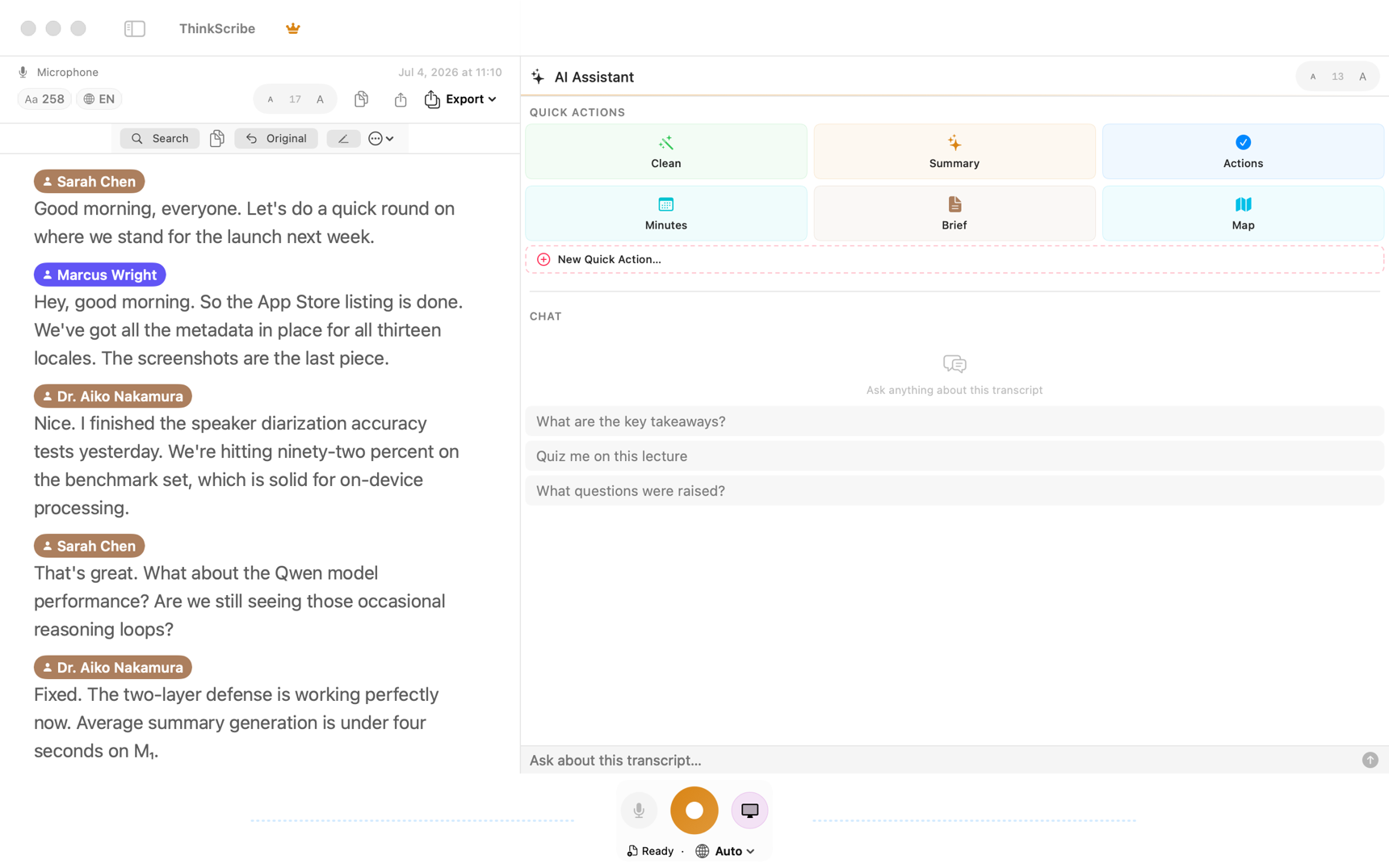
- Drag and drop: drag files from Finder onto the record bar at the top of the window, or onto the empty library area, where the target reads Drop to import.
Each file is queued and transcribed in order. The library shows progress per file, and you can keep working, or import more, while it runs.
Import on iPhone and iPad
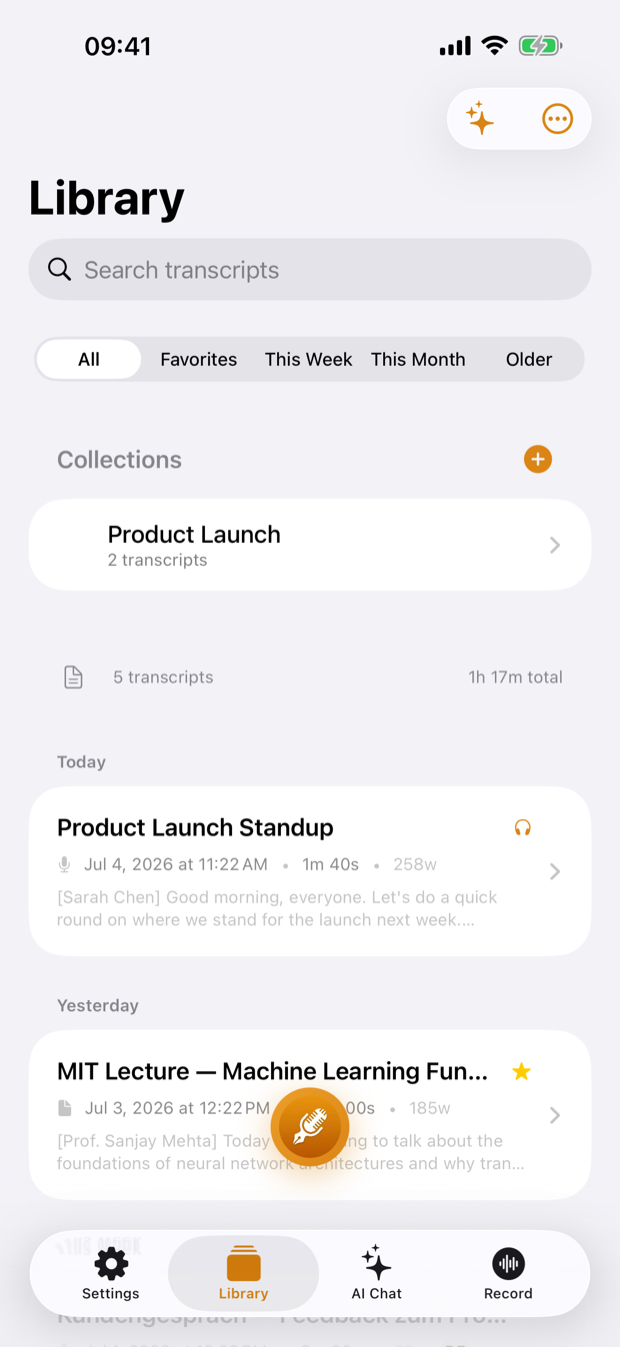
- Share sheet: in Voice Memos, WhatsApp, Telegram, Files, Mail or any app, tap Share and choose ThinkScribe. It confirms Added to ThinkScribe. Open the app to transcribe.
- From the app: on the Record tab, tap Import Audio File and pick from Files.
Open ThinkScribe and the file is transcribed in the background. The Lock Screen shows progress, and the transcript appears in the Library when done. Transcribing WhatsApp voice notes walks through that specific case, including long voice notes. If the file came from Voice Memos, check first whether the transcript built into Voice Memos already covers what you need.
Set the language and engine
- Language: leave it on Auto-detect and ThinkScribe identifies the language from the first part of the file. If you know the language, set it as the default under Settings > Transcription on Mac, or Settings > Language on iPhone, for a faster, more certain result.
- Engine: the engine under Settings > AI & Models (Mac) or Settings > Transcription Engine (iPhone) is used for imports. Parakeet is recommended for European languages; Whisper covers Chinese, Japanese, Korean and many more; Apple Speech is instant and needs no download.
Import several files at once
Select several files in the Command-I dialog, or drop a handful onto the record bar. They are processed one after another. On Mac, pair this with Auto-Export under Settings > Transcription to have every finished transcript written to a folder in the format you choose, which turns a folder of old recordings into a folder of Markdown or Word documents without further clicks. See export and share transcripts.
What to do with the transcript once it is ready
- Click or tap any word to play the audio from that moment.
- Use the Clean toggle to hide filler words while you read.
- Open the AI Assistant for a summary, action items or a question answered with citations. See the AI assistant guide.
- Right-click the transcript on Mac and choose More… > Show in Finder to locate the audio copy ThinkScribe keeps, or Delete Audio Only to keep the text and drop the recording.
Frequently asked questions
Which audio and video formats can be transcribed?
ThinkScribe reads MP3, M4A, AAC, WAV, AIFF, FLAC, CAF, OGG and Opus audio, and MP4 and MOV video, with the audio track extracted from video. That covers phone voice memos, podcast downloads, screen recordings and messaging voice notes. Anything else, such as a proprietary recorder format, converts to WAV or M4A first and then imports normally.
Is the file uploaded anywhere?
No. Transcription, speaker identification and summaries run on your Mac or iPhone. The only network use is the one-time download of the optional speech and AI models.
Can I transcribe a YouTube video or a web page?
Not from a link. Download the file and import it, or on Mac record the playback with the System audio toggle on, which captures whatever is playing. See record a call or a video on Mac.
How long does a one-hour file take?
On a recent Mac with Parakeet, a few minutes; on an iPhone, somewhat longer and it runs in the background. Whisper is slower but covers more languages. Apple Speech is fast and needs no download.