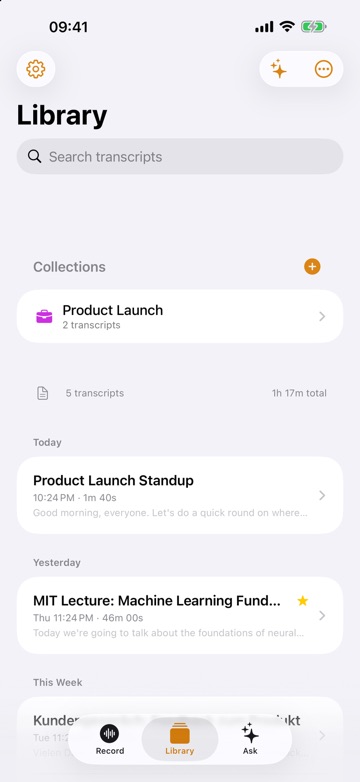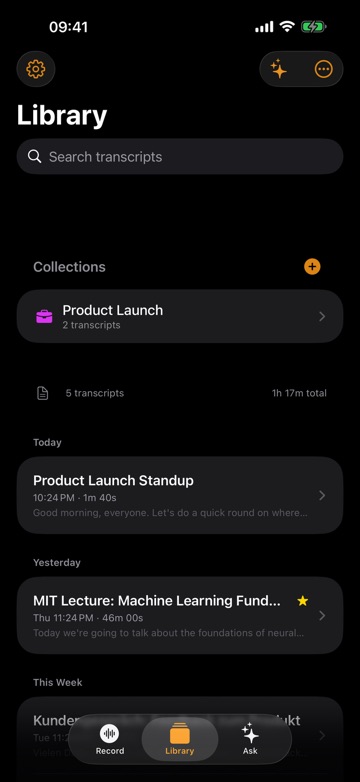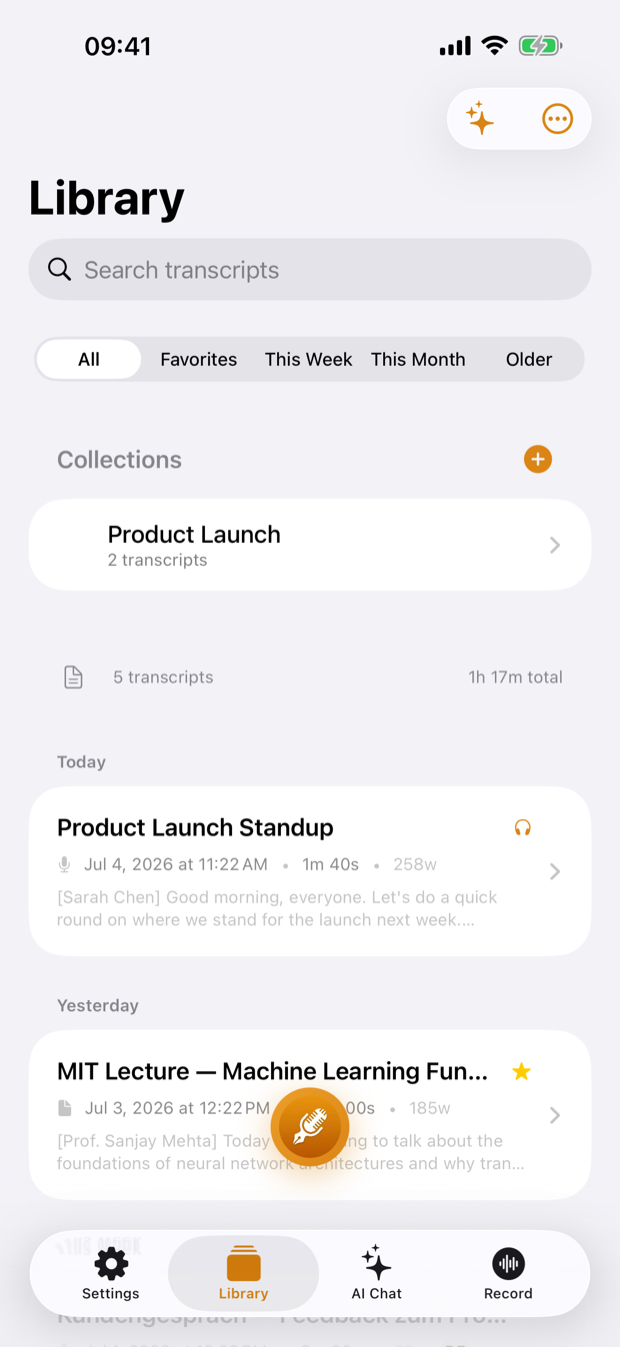
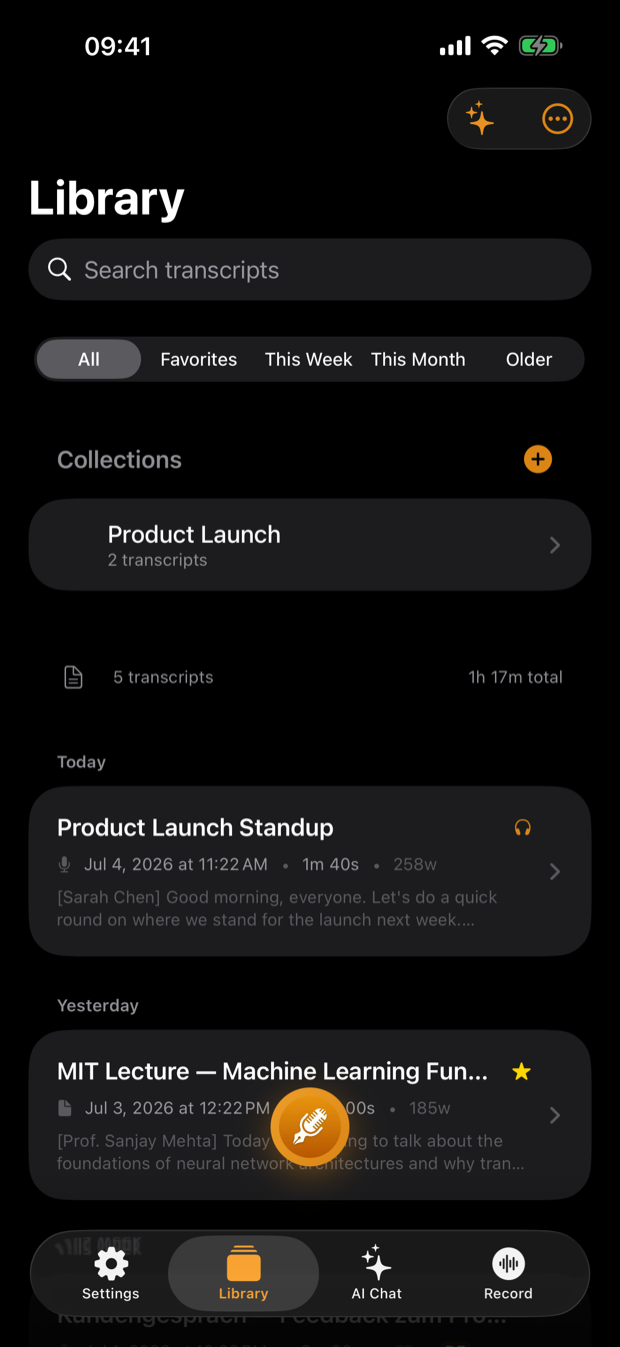
To transcribe audio to text on iPhone, open ThinkScribe and either record the audio in the app or bring in a file you already have with Import Audio File or the Share sheet. ThinkScribe makes the transcript on your iPhone, separates the speakers, and gives you text you can search, copy and export.
It works offline, there is no account, and your recordings and transcripts are never sent to us. The same steps apply on iPad.
This guide covers both routes (recording and importing), how to get the language right, and what to do with the transcript once you have it.
Recording or importing: which route fits
Record in ThinkScribe when the audio has not happened yet: a meeting, a lecture, an interview, your own thoughts. You get the full transcript moments after you stop.
Import a file when the audio already exists: a Voice Memos recording from last week, a long WhatsApp voice message, a video from your camera roll, an mp3 someone emailed you. Video files work too, since ThinkScribe transcribes their soundtrack.
Both routes end in the same place, a transcript in your Library, so everything after that point is the same.
How to transcribe a new recording on iPhone
- Open ThinkScribe on the Record tab.
- Tap the language chip (the globe next to the record button) and pick the language that will be spoken.
- Tap the record button and talk.
- Tap Stop when you are done.
- Wait a moment while ThinkScribe transcribes and separates the speakers, then open the new recording.
You can switch apps or lock the phone while it records: the recording keeps going. For meetings, see meeting minutes from a recording.
How to transcribe an audio file on iPhone
- On the Record tab, set the language chip to the language spoken in the file.
- Tap Import Audio File (it is also in the Library's ... menu).
- Choose the file in the Files picker. Audio and video files both work, one at a time.
- Open the new transcript from the Library when it is ready.
From another app, use the Share sheet. In Voice Memos, Files, WhatsApp or Telegram, share the recording and choose ThinkScribe. You will see "Added to ThinkScribe. Open the app to transcribe." Open ThinkScribe and the file is transcribed. This is the quickest way to deal with a long voice message.
ThinkScribe does not import from YouTube or other web links. It needs the file itself. The full list of formats and the Mac differences are in transcribe an audio or video file.
Pick the right language first
The language setting matters more than anything else for accuracy. ThinkScribe transcribes 28 languages, and it works best when it knows which one to expect.
- Tap the language chip before you record or import and choose the spoken language.
- If you see Auto-detect in the list, you can use it for files where you are unsure. It is offered with some transcription engines, not on every setup, so do not count on it.
- Set the language you use most often as the default in Settings > Language.
If a conversation mixes two languages, pick the language most of it is spoken in.
Read, clean and search the transcript
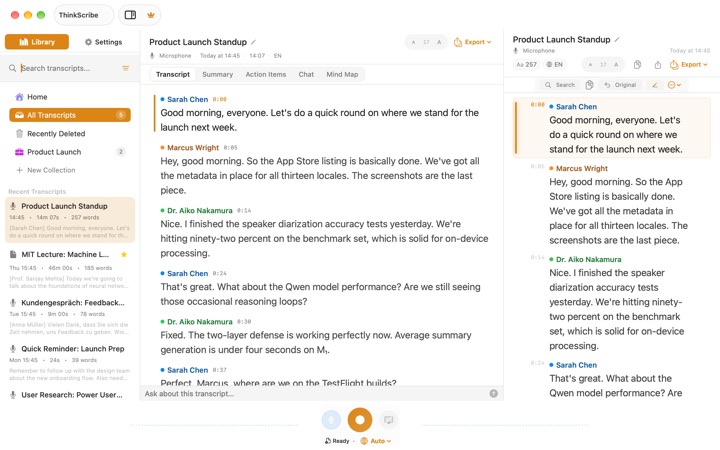
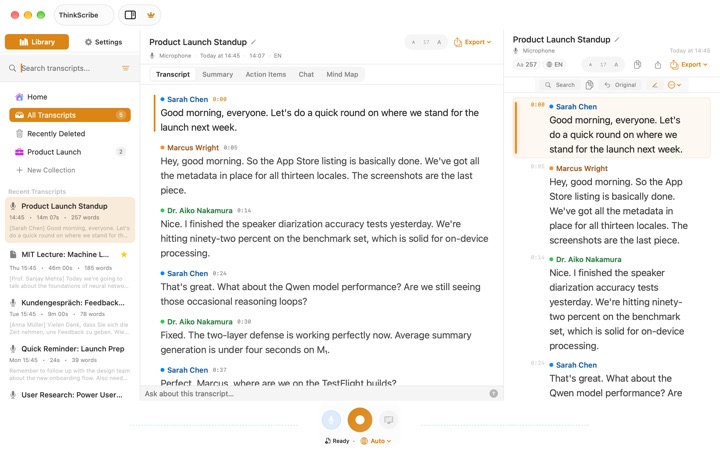
Once the transcript is open, you have three tabs: Transcript, Summary and Chat, with the player docked at the bottom.
Reading. Tap a line to play the audio from that point. Long-press a line for Copy with Timestamp, which is how you quote someone accurately.
Clean text. Transcripts show cleaned text by default, with hesitations and fillers removed so they read like sentences. If you need the exact words, including every "um", choose Show Original from the ... menu.
Speakers. Voices are labeled Speaker 1, Speaker 2 and so on. Long-press a speaker badge and choose Rename Speaker... to put a name on every line by that voice. See speaker identification.
Names and jargon. If a name or technical term keeps coming out wrong, add it to the Custom Dictionary (Settings > Advanced). Words you correct three or more times in transcripts are added for you.
Search inside one transcript. Tap the magnifier for Find in transcript and step through matches with previous and next.
Search across all of them. The Search transcripts field in the Library looks through the full text of every transcript and title. Search inside audio recordings has tips for finding one sentence in months of recordings.
Export or share the text
- Open the transcript and tap the ... menu.
- Choose Export.
- Pick a format: Export as TXT, PDF, Markdown, SRT, VTT or JSON.
- Send it where you need it with the Share sheet, or save it to Files.
For a quick paste, Copy Text and Share Text in the same menu are faster. Share Audio sends the original recording. Word files are not available on iPhone; if you need a .docx, export from the Mac app. Details for every format are in export a transcript.
Is it free to transcribe audio to text on iPhone?
Here is the honest answer. ThinkScribe is free to download, and it comes with free uses of transcription and every other Pro feature so you can try it on your own audio. Recording itself is free with no limit, and so is reading and exporting transcripts you already have. Pro removes the limits on transcription, AI, voice typing and translation, and one subscription covers iPhone, iPad, Mac and Apple Watch.
So you can transcribe your first files free and see whether the quality is right for your audio before deciding.
Tips for a cleaner transcript
- Get the phone close to whoever is speaking. Distance and room echo hurt accuracy more than anything else.
- Keep your hand off the microphone. Handling noise is hard to transcribe.
- One file per conversation. It makes search results and summaries easier to use.
- Check the language chip every time you switch between languages. A file transcribed in the wrong language is the most common reason for a bad result.
On a Mac with a folder of files to get through, the Mac app can import several at once; see transcribe audio to text on a Mac. For the bigger picture of recording, voice typing and importing, read voice to text on iPhone, iPad and Mac: the complete guide, or the audio to text overview.
Frequently asked questions
How do I transcribe a Voice Memos recording on iPhone?
Open the recording in Voice Memos, tap Share, and choose ThinkScribe. Then open ThinkScribe and the recording is transcribed on your iPhone. You can also save the memo to Files and use Import Audio File.
Can I transcribe audio to text on iPhone for free?
ThinkScribe is free to download and includes free uses of transcription so you can try it on your own audio. Recording and exporting what you already have are free with no limit; Pro removes the limits on transcription.
Does it work without an internet connection?
Yes. Transcription and speaker labels run on your iPhone and work offline. There is no account, and your recordings and transcripts are never sent to us.
Can I transcribe a video on iPhone?
Yes. Use Import Audio File and pick a video from Files, or share it to ThinkScribe. ThinkScribe transcribes the soundtrack. Links from YouTube or other sites cannot be imported.
What languages can I transcribe?
ThinkScribe transcribes 28 languages, including English, Spanish, French, German, Japanese, Korean and Chinese. Pick the spoken language on the language chip before you record or import.