Voice journaling that stays on your own device
How to keep a spoken journal on iPhone, Apple Watch or Mac, why an on-device transcript matters for something this private, and how to find an old entry.
Voice journaling works because talking is faster than typing and considerably less self-conscious. Plenty of people who never manage to keep a written journal find they can keep a spoken one: three minutes on a walk, two minutes in the car after a difficult meeting, a thought at the end of the day. This guide covers how to run that habit with ThinkScribe, so that each entry becomes searchable text rather than an audio file you will never open again, and so that none of it leaves your devices.
What this is, and what it is not
Be clear about this before you start, because the fit matters more than the feature list.
ThinkScribe is a recorder and a transcription app. Used as a private voice journal app, it gives you: a one-tap recorder on your phone, your wrist and your Mac; a transcript of every entry, produced on the device; a searchable library; folders to keep entries together; and an on-device assistant that can summarize or answer questions across what you have recorded.
It is not a structured journaling app. There are no daily prompts, no streaks, no mood tracking, no gratitude templates, no calendar heatmap and no reminders nudging you to write. If those scaffolds are what keep you journaling, use an app built around them. What you get here is the plainest possible version of the thing: press record, talk, and the words are kept as text you own.
For a lot of people that is the point. The scaffolding is what makes journaling feel like homework.
Why speak rather than type
- It is faster. Most people speak three to four times faster than they type, and a spoken entry that takes two minutes would have taken ten to write, which is usually the difference between doing it and not.
- It is less edited. Typing invites revision as you go. Talking gets closer to what you actually think, which is more useful to read back in six months.
- It works where writing does not. Walking, driving, standing outside a building before you go in, lying in the dark at the end of the day.
- It keeps the voice. The audio stays attached to every word, so tapping a line plays exactly that moment. Reading a difficult entry from a year ago and hearing how you sounded saying it is a different kind of record than text alone.
Capture an entry
On iPhone
Open ThinkScribe and tap the large record button on the Record tab. The screen shows the elapsed time and a live waveform, and the Lock Screen shows a Live Activity with a Stop button, so you can put the phone in your pocket and keep walking. Tap stop when you are done, and the transcript appears in the Library shortly afterwards. See getting started on iPhone for the first-run setup.
On Apple Watch
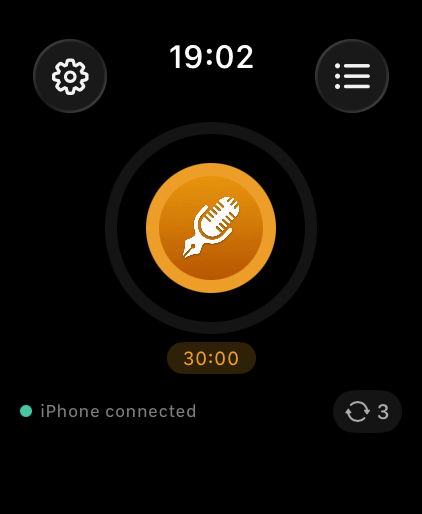
This is the one that turns journaling into a habit, because the barrier is a wrist and not a pocket. Add the ThinkScribe complication to a watch face and an entry is one tap away, with no phone needed: the watch records on its own and hands the audio to the iPhone when it is back in range, and the iPhone does the transcription. Set the recording length under Recording Duration in the watch app, 5 or 10 minutes is plenty for a journal entry, so a forgotten recorder cannot run all afternoon. Record on Apple Watch, transcribe on iPhone covers the setup and the transfer statuses.
On Mac
Press Command-R or click Record in the record bar at the top of the window with the Microphone toggle on. This is the one to use for a longer end-of-week entry at a desk, where you might want to talk for fifteen minutes and then read it straight back.
Or type it by voice
If your journal lives in another app entirely, a notes app, a document, a dedicated journaling app, you can still speak it. The iPhone voice keyboard and system-wide voice typing on Mac insert dictated text wherever you are typing, on the device, so the entry goes straight into whatever you already use. You lose the searchable library and the audio; you keep the speed.
Why on-device matters more here than anywhere else
A journal is, by some distance, the most private thing most people produce. It contains the things you have not told anyone: health worries, doubts about a relationship, resentment at work, money problems, and other people's confidences that they told you and not a company.
Cloud transcription means that content is uploaded, processed on someone else's machine, and subject to a retention policy, a subprocessor list and a jurisdiction. None of that is sinister and reputable services document it honestly, but it is a chain of trust you are extending to a diary. With on-device transcription there is no chain: recognition and summarization run on your iPhone, Mac or iPad, nothing is uploaded, there is no account holding your entries, and no policy you would need to re-read when it changes. The on-device versus cloud comparison covers what the distinction does and does not include.
A related practical point: it works with no connection. Journaling happens on a train, on a plane, on a hillside, and at 2am when the Wi-Fi is off.
Keep entries findable
A journal is only worth keeping if you can get back into it. Three habits do almost all the work:
- Say the date and the context in the first sentence. "Thursday evening, after the review meeting." It costs three seconds and makes every later search better, because you can search for the words you actually said.
- Use a collection. Make a collection called Journal and put entries in it. Everything else in your library, meetings, imports, voice notes and lecture recordings, stays out of the way, and on Mac you can export or ask questions about the collection as a unit.
- Rename the entry if a single phrase captures it. A library of dated rows is harder to scan than a library of titles.
Then search. Every transcript is full-text searchable, so an entry from March about a job offer is one search for the word away, rather than a scroll through fifty audio files with no clue which is which.
Look back over a month
This is the part that is genuinely hard to do with audio and easy to do with transcripts. On iPhone, the AI Chat tab asks questions across your library rather than a single recording; on Mac, collection chat does the same for a collection you point it at. Both run on the device, and both cite which recording each part of the answer came from, so you can click through and hear it.
That makes questions like these answerable:
- What did I keep coming back to this month?
- What was I worried about in the spring that turned out fine?
- Every time I mentioned the house, what did I actually say?
On a single entry, the AI Assistant's quick actions still apply: Summarize for a long rambling entry, or your own saved quick action on Mac for whatever shape you prefer. If you keep asking for the same thing, make it a button once, "Pull out anything that sounds like a decision I made", and it appears on every transcript. See the AI assistant guide.
Keeping it, and keeping it safe
- Export what you want to keep elsewhere. Markdown, PDF, Word, plain text and JSON are all one click away, and on Mac Auto-Export can write every finished transcript into a folder automatically, a folder inside a notes vault, for instance, so entries land as Markdown files without a further thought. See export and share transcripts.
- Back the library up. Export Library… writes transcripts and audio into a single archive you can store yourself and restore later, on this device or a new one.
- Decide about the audio. Audio is kept alongside the transcript so you can play any line back. If you would rather not keep the recordings, you can delete the audio and keep the text.
- Lock the device, not just the app. The strongest protection for a journal on a phone is the phone's own passcode and encryption. Use them.
Frequently asked questions
What is voice journaling?
Voice journaling is keeping a diary by speaking it rather than writing it: a few minutes out loud on a walk, in the car, or at the end of the day. People who never manage a written journal often keep a spoken one, because talking is faster and less self-conscious. Transcribing each entry is what turns the habit into something you can search later.
Are my journal entries private?
Transcription, speaker separation and the AI assistant all run on your own device, so entries are not uploaded and there is no account holding them. Sync between your devices is off until you turn it on, and when it is on it runs through your own iCloud account. The only network use is the one-time download of the optional speech and AI models.
Can I record a journal entry on Apple Watch without my iPhone?
Yes. The watch records on its own and transfers the audio to the iPhone when it is back in range, where it is transcribed. Recordings stay on the watch until the transfer is confirmed, so a walk without your phone is fine.
Can I ask questions across a whole year of entries?
Yes, within the limits of any automatic summary. The AI Chat tab on iPhone searches across your library and collection chat on Mac searches a collection, both on the device, and both cite which recording each answer came from so you can click a citation and hear the original. Treat the answers as a way of finding the right entry rather than as a substitute for reading it.