Short answer: start the recording in ThinkScribe, then switch to the app you write in. ThinkScribe keeps recording while your notes app is in front, and it can also sit in a window next to it. When you tap Stop, the lecture is a searchable transcript on your iPad.
You do not have to choose between your handwriting and a transcript. Keep writing in Goodnotes, Notability or Apple Notes the way you do now, and let ThinkScribe catch every word you had no time to write down.
Before the class
- Check that you are allowed to record. Record a lecture and turn it into study notes covers what to ask.
- Open ThinkScribe once at home and make a ten-second test recording, so the microphone permission is already given.
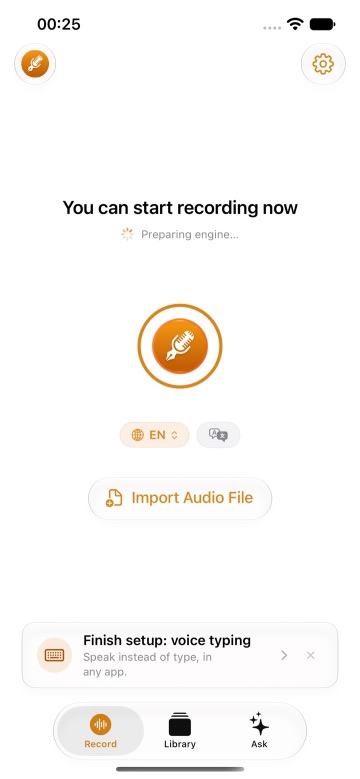
- On the Record tab, check the language chip and pick the language of the lecture.
Record with your notes app in front
This is the simple way, and it leaves the whole screen for your notes.
- Open ThinkScribe and tap the record button.
- Switch to your notes app and write as usual. The recording continues in the background.
- When the class ends, go back to ThinkScribe and tap Stop.
The transcript appears in the Library when transcription finishes. It runs on your iPad and works offline.
Or keep ThinkScribe in a window next to your notes
If you want to see the timer, or the words as they are spoken, give ThinkScribe a narrow window. The names below are the ones iPadOS 27 shows.
- With ThinkScribe open, drag the handle in its bottom right corner to make it a window.
- Touch and hold the window controls at its top left. Under Move & Resize, choose the left or the right half. Fill & Arrange places two apps side by side in one step, and Enter Slide Over keeps ThinkScribe as a panel you can slide away.
- Open your notes app in the rest of the screen.
In a narrow window ThinkScribe looks the way it does on iPhone, with the tabs at the bottom. Resizing or moving the window does not interrupt the recording. With Live Text on, which is the default, the words appear as they are spoken.
Get a better recording
- Mind the pencil. The iPad's microphones are next to where you write, so taps on the glass are louder on the recording than in the room. Sit near the front, or record on your iPhone placed closer to the speaker and read the transcript on iPad with iCloud Sync on.
- Very long sessions. For a class of several hours, ThinkScribe itself suggests recording with Voice Memos and sharing the file to ThinkScribe afterwards, which is easier on the battery. You give up the live text. Importing a file shows how.
- Keep the iPad charged or plugged in for back-to-back classes.
After the class
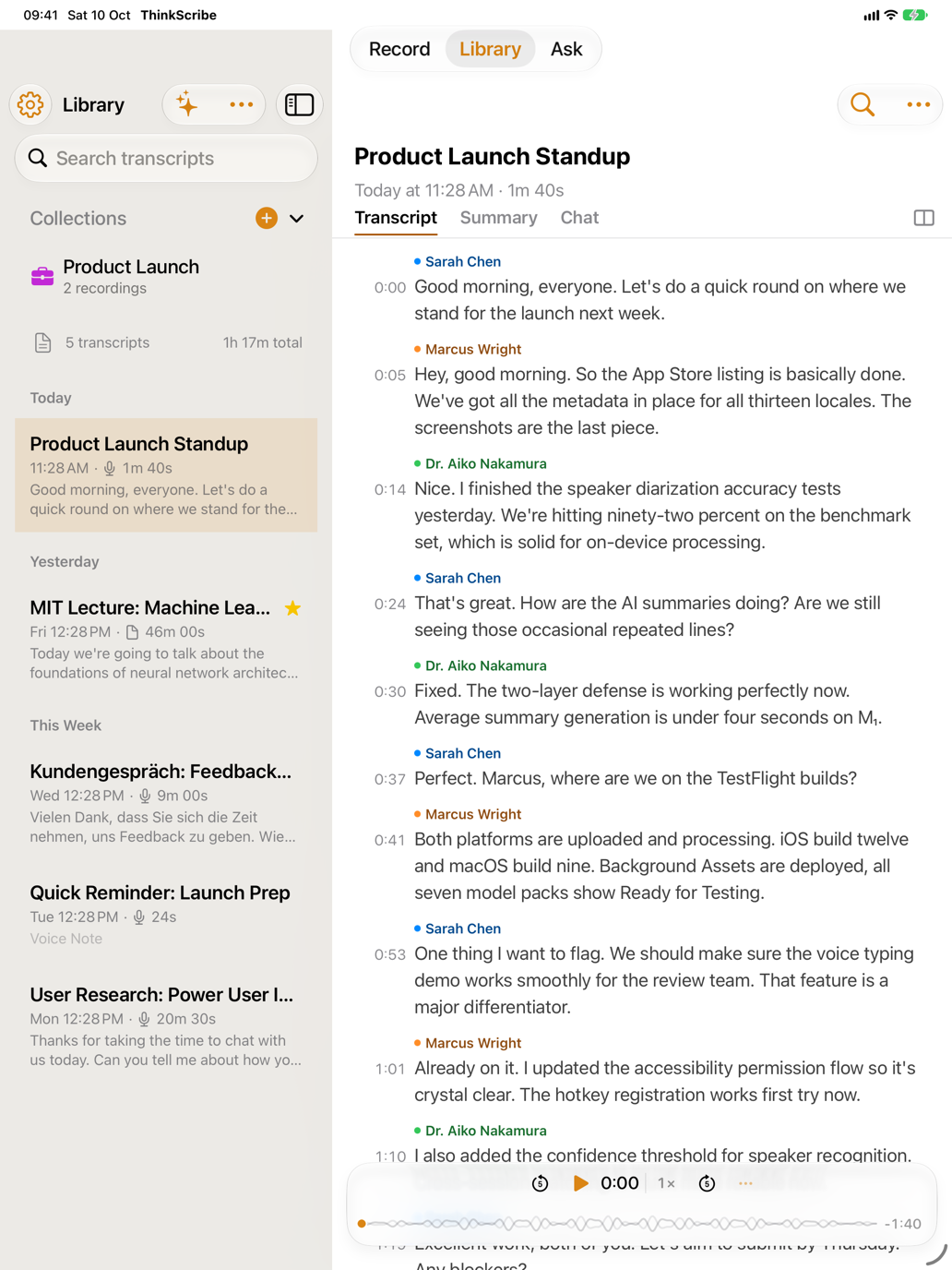
Open the recording in the Library. On iPad the Library stays beside the open recording, so you can move through a week of lectures without going back.
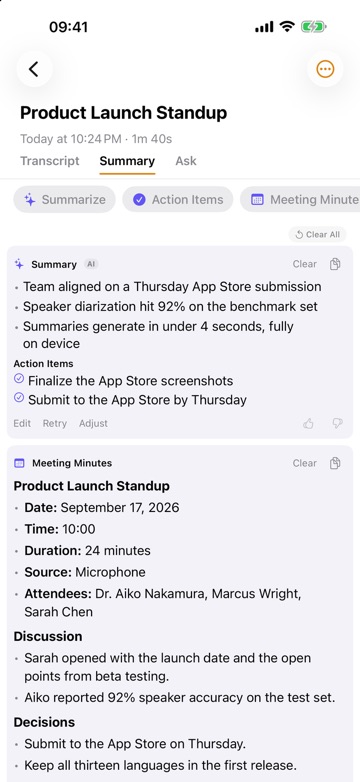
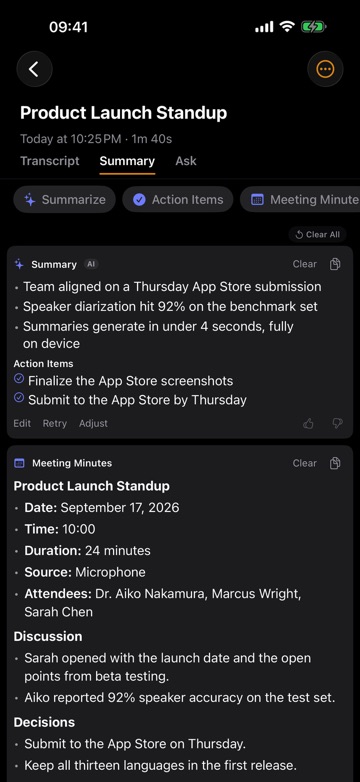
- Summary drafts the key points, and its copy button puts them on the clipboard, ready to paste into your notes.
- Chat answers questions about the lecture and cites the lines it used.
- Search transcripts finds a word across every lecture of the term.
- You can drag a recording out of the Library and drop its text into another app.
Frequently asked questions
Does ThinkScribe keep recording when I switch to my notes app?
Yes. Start the recording, switch apps, and it continues until you go back and tap Stop.
Does it work with Goodnotes, Notability and Apple Notes?
It works next to any app. ThinkScribe does not connect to your notes app: iPadOS places the two windows side by side, so nothing needs setting up in either one.
Can I handwrite in ThinkScribe?
No. ThinkScribe records, transcribes and summarizes. For handwriting, keep the notes app you like and use the two together.
Does it need the internet?
No. Transcription and speaker labels run on the iPad and work offline, and your recordings are never sent to us.
Which iPads does it run on?
Any iPad with iPadOS 26 or later.